***
title: How to Test Using Sandbox Credentials
slug: guides/sandbox-credentials
subtitle: 'Staging credentials, test cards, and KYC flows for integration testing'
----------------------------------------------------------------------------------
## KYC
The KYC (Know Your Customer) experience on the staging environment closely mirrors the experience on the production environment. The primary difference between the two environments is that all checks performed on the staging environment are dummy checks, and the KYC result on staging is always approved.
### Creating Test Account in Staging: (Europe Account)
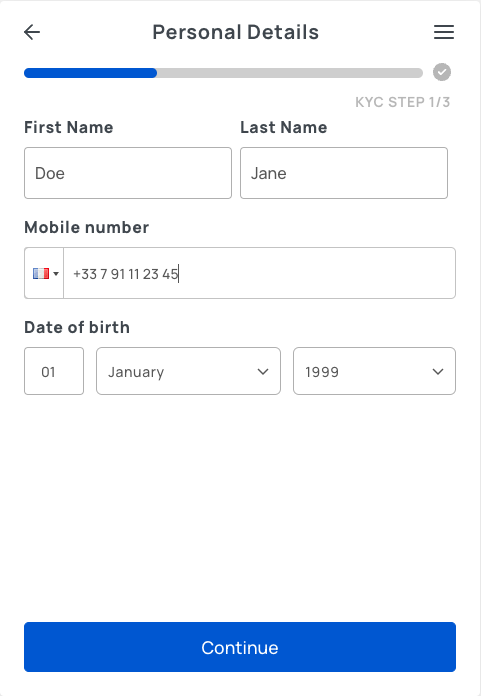
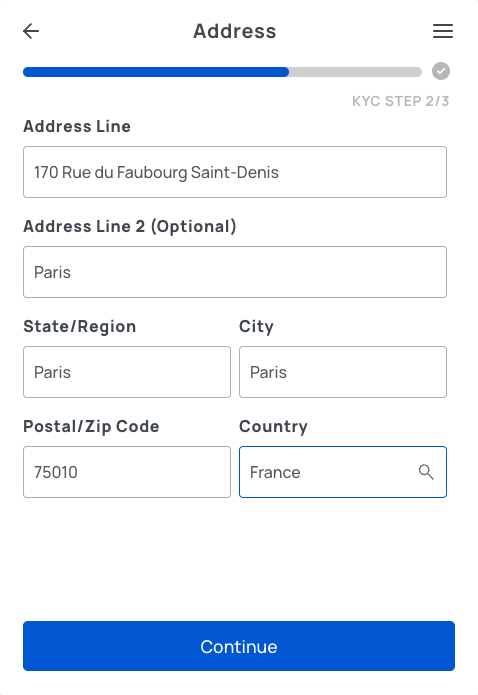
You can use the below credentials to create a staging account for **France** KYC Level 1 and Level 2 verified users.
* **Level 1**: Lite KYC — Only Personal and Address details are required.
* **Level 2**: Standard KYC — Personal, Address, and ID Proof (Document and Selfie) are required.
| Field | Value |
| ------------- | ------------------------------- |
| First Name | **Doe** |
| Last Name | **Jane** |
| Mobile Number | **+33 791112345** |
| Date of birth | **01-01-1998** |
| Field | Value |
| --------------- | -------------------------------------------------------- |
| Address Line | **170 Rue du Faubourg Saint-Denis, Paris** |
| State/Region | **Paris** |
| City | **Paris** |
| Postal/Zip Code | **75010** |
* Choose your **Issuing Country** as **France**
* Choose your **Accepted documents** as **Driver's license**
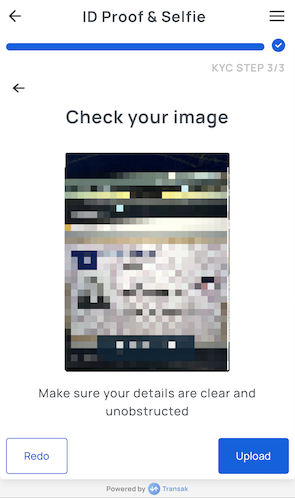
* Use the test document below (the same document can be used to upload the front and back sides)
* The Upload document option is available only in the desktop version.
To create a test account on mobile in staging, use your mobile camera to take a picture of the test document.
* This is the final step in the KYC verification process.
* Please be aware that only genuine selfies are accepted for account creation.
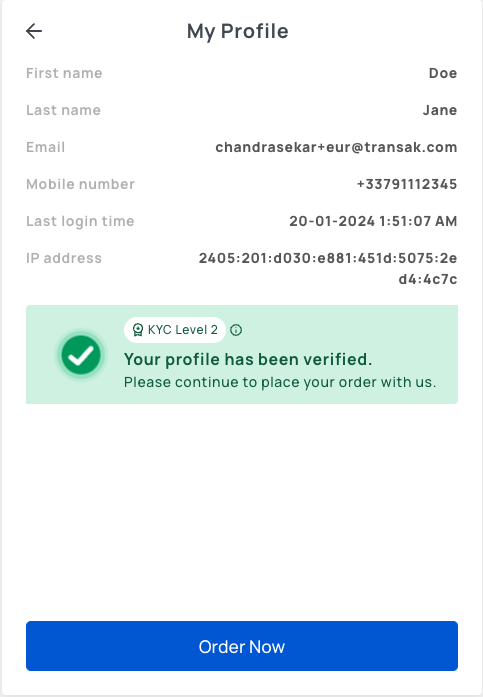
Your KYC will be instantly approved in the staging environment upon submission of the valid documents.
For US: Use SSN no.123456789 to create a test account.
For India: Use PAN no.ABCDE1234A to place INR order.
## Payment Credentials
* Test UTR no: `345678909872` (INR) (Alter the mentioned number each time you attempt it)
* Test IBAN: Use [IBAN generator](http://randomiban.com) to generate your unique IBAN
* If you're required to enter a code to validate the bank account or phone number for the test transactions, you can enter `000000` for both to complete this verification.
You can use the below test cards to test card payments.
| Card Type | Card Number | Expiration | CVV | Fiat Currencies |
| :-------- | :---------------------------- | :----------------- | :--------------- | :--------------------------------------------------------- |
| VISA | 4024764449971519 | 10/33 | 123 | USD, IDR |
| VISA | 4242424242424242 | 10/33 | 100 | GBP, EUR, AUD, CAD, CHF, NOK, JPY, KRW, ZAR, NZD, SGD, HKD |
The password for Payment Authorization 3Ds screen is **Checkout1!** in staging
You can use the below test cards to test withdrawals by card payments.
| Card Type | Card Number | Expiration | CVV | Fiat Currencies |
| :-------- | :---------------------------- | :----------------- | :--------------- | :-------------- |
| VISA | 4024764449971519 | 10/33 | 000 | USD |
| VISA | 4076613139850359 | 10/33 | 000 | SGD |
| VISA | 4800337630495182 | 10/33 | 000 | EUR |
| VISA | 4921817844445119 | 10/33 | 000 | GBP |
Use `000000` for both the bank account and phone number verification codes during test transactions.
For testing Google pay transaction, user need to join one group from this [link](https://developers.google.com/pay/api/web/guides/resources/test-card-suite) from valid gmail account to enable test cards.
| Field | Value |
| :------------------------ | :--------------------------- |
| Test Mobile Number | +56 61 789 6283 |
| Test Valid OTP (All Zero) | 000000 |
**Successful Payment**
| Username | Password | OTP |
| :------- | :------------- | :----- |
| 91284 | strongpassword | 222000 |
**Negative Scenarios: User didn't authorize bank account**.
| Username | Password |
| :------- | :---------- |
| 28284 | badpassword |
Upon failed authorization, user will be redirected back to `failure_redirect_url`.
A payment method which is not available on this page is not available for testing in the staging environment.
## Simulating Failed & Refunded Orders
To simulate failed and refunded orders in the staging environment, simply use special email aliases. This allows you to test how your system responds to unsuccessful transactions across all Transak products.
### How to Simulate
* Add `+review` to your email address to simulate a refunded order.
* Add `+failed` to simulate a failed order.
| Base Email | Refund Email | Failed Email |
| :------------ | :------------------- | :------------------- |
| `xyz@abc.com` | `xyz+review@abc.com` | `xyz+failed@abc.com` |
Most email providers support plus addressing, so emails sent to aliased addresses like `yourname+refund@example.com` will still be delivered to your main inbox.
Use any available payment method.
* Orders made with a `+review` email will automatically be marked as **REFUNDED**
* Orders made with a `+failed` email will automatically be marked as **FAILED**
## Blockchain Testnets (Onramp)
`ERC-20` token transfers across the following five networks will utilize the `ERC-20` `Transak Test Token (TRNSK)`.
* **ERC-20 example (staging):** Buying **100 USDC** on **Polygon** delivers **100 TRNSK** to your wallet; the transaction hash shows a transfer of **100 Transak Test Token**.
* **Native tokens:** Buying **1 ETH** on **Ethereum** or **100 MATIC** on **Polygon** still completes successfully, but **no tokens** are sent to your wallet.
* **Off-ramp:** Buy **TRNSK** via on-ramp, then send **TRNSK** to us to test off-ramping.
This is applicable for all Transak products (On-ramp, NFT Checkout, Transak One). We don
Apart from the tokens and chains mentioned above, actual tokens will not be delivered to your wallet, but you can place a dummy order to see the user experience.
## Testing Off ramp orders
For off-ramp, place orders only for native tokens supported and transfer the official testnet token on that network for order to be reconciled automatically.