***
title: Whitelabel API
slug: integration/api
subtitle: A complete API solution for building custom on/off ramp experiences.
max-toc-depth: 2
----------------
The **Transak Whitelabel API** enables partners to integrate Transak products directly into their own platforms using APIs, without displaying any **third-party user interface** (such as the Transak Widget).
Partners maintain complete control over the **user interface and end-to-end user journey**, while Transak manages the backend complexities through APIs, including KYC, compliance, liquidity, payment processing, and fraud management.
## Who Should Use This?
This solution is ideal for partners who want to fully own and control the **E2E user journey**, **including the user interface, experience, and flow**.
|
Wallets
Integrate fiat on/off-ramps directly into wallet interfaces for seamless user experience.
|
|
DEXs or CEXs
Enable users to buy and sell crypto within your exchange platform using fiat.
|
|
DApps
Add fiat payment options to decentralized applications for broader user accessibility.
|
|
Fintech Apps
Power remittances, neobanks, and cross-border payment solutions with crypto rails.
|
## Key Capabilities
Build and control the complete user journey, from authentication and KYC to order creation and tracking, without any third-party UI.
Access 36+ cryptocurrencies across 45+ blockchains in 64+ countries with transparent pricing via Lookup APIs.
Create and track orders programmatically using REST APIs, Webhooks, and WebSockets.
Transak handles KYC, AML, transaction monitoring, and regulatory compliance.
Reuse your existing KYC data with Transak through Sumsub for faster onboarding.
## Partner Integration Prerequisites
Follow the steps in the [Need help in Integration](/getting-started/help-and-support#need-help-in-integration) section to reach us. Then raise the request to enable **Whitelabel APIs** for your API key and share your public IP addresses with Transak for whitelisting to use our APIs in your backend.
Start by designing and implementing the complete user flow, including error handling. See the [Lookup API reference](/api/whitelabel/lookup/get-countries) to begin.
You must include [Transak's Terms of Service](https://transak.com/terms-of-service) within their own Terms & Conditions. End users must be able to review and acknowledge Transak's T\&C as part of the user journey.
## Current Limitations & Known Constraints
|
Product
|
Supported
|
Limitations
|
|
On Ramp
|
Yes
|
Card / Apple Pay: Semi-widget flow required. Navigate to Transak's Widget to add cards and place orders.
Google Pay: Not supported.
Bank Transfers: Fully supported through APIs.
Lite KYC: Fully supported through APIs (Personal & Address details).
Standard KYC: Navigate to Transak's provider widget to upload Document ID Proof and conduct Liveness checks.
|
|
Off Ramp
|
No
|
NA
|
|
NFT Checkout
|
No
|
NA
|
|
KYC Reliance Via Sumsub
|
Yes
|
Not supported for US KYC users
|
|
Transak Stream - Off Ramp
|
No
|
NA
|
|
Transak Stream - On Ramp
|
No
|
NA
|
Whitelabel APIs are to be called only from the partner backend and subjected to the whitelisting of partner IP addresses. Direct API calls from the frontend apps are not supported.
## API Overview
Lookup APIs provide public reference data that you can use before initiating a session. Use them to populate currency selectors, validate supported regions, and fetch real-time quotes — no authentication required.
Returns a list of supported crypto assets with network and symbol details.
Returns all supported fiat currencies along with their default locale mappings.
Returns supported countries and any applicable regional restrictions.
Returns a real-time quote with the expected amount and fee breakdown.
Fetch all required data before presenting the order form.
Fetch supported fiat currencies and payment methods.
Fetch available crypto assets and networks.
Pass values from the steps above to get a real-time quote.
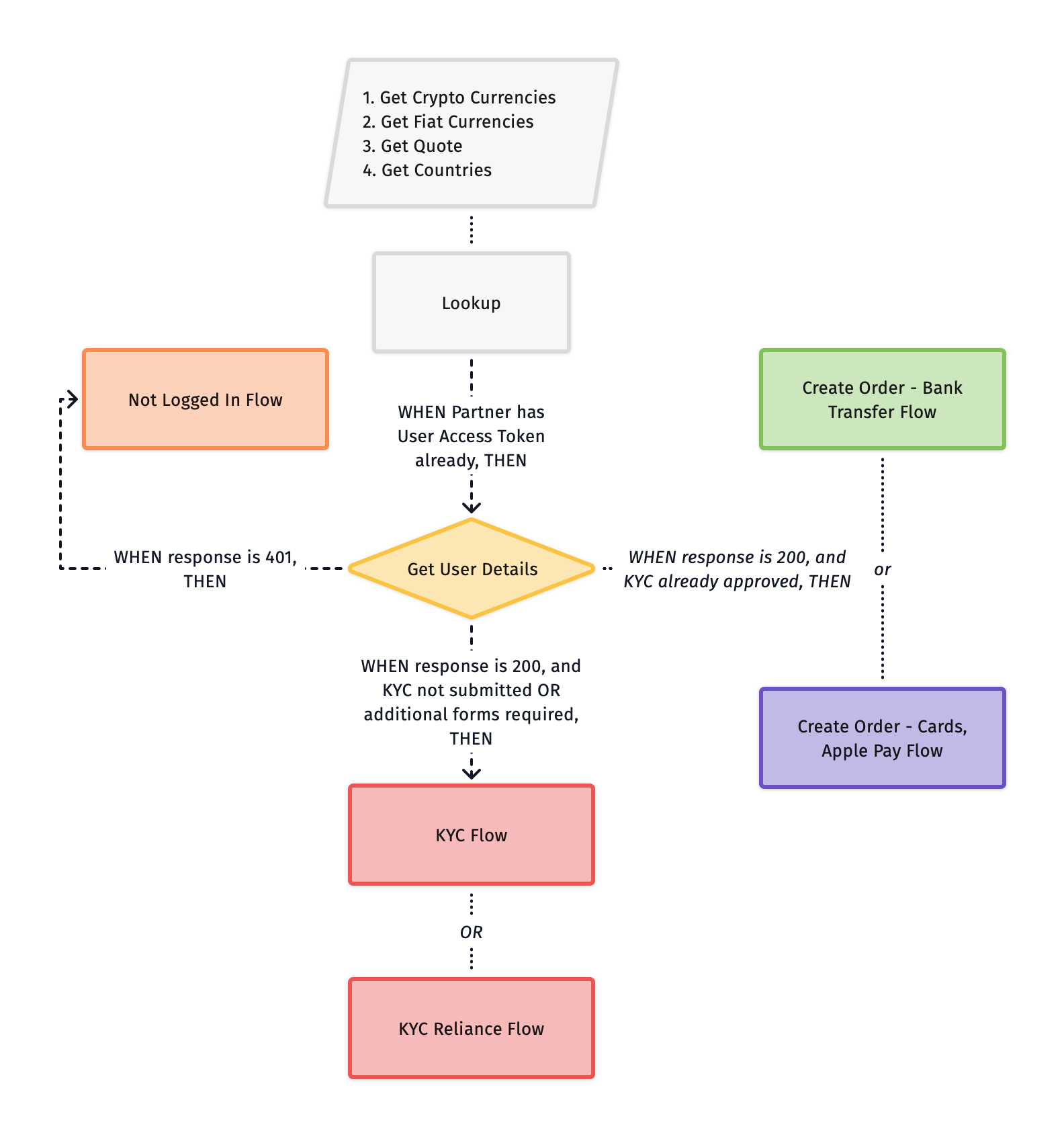
Pass the existing **User Access Token** to Get User Details to fetch the user's KYC status. Route the user as follows:
|
Condition
|
Next step
|
response = 200 and data.kyc.status === "APPROVED"
|
Proceed to Create Order — Bank Transfer or Create Order — Cards, Apple Pay flow
|
response = 200 and data.kyc.status === "NOT\_SUBMITTED"
|
Proceed to KYC Flow
|
response = 200 and data.kyc.status === "ADDITIONAL\_FORMS\_REQUIRED"
|
Proceed to Additional KYC Flow
|
response = 401
|
Proceed to Not Logged In Flow — the User Access Token is missing, expired, or invalid. Re-authenticate using the Not Logged In Flow tab (Send User OTP → Verify User OTP).
|
Fetch all required data before presenting the order form.
Fetch supported fiat currencies and payment methods.
Fetch available crypto assets and networks.
Pass values from the steps above to get a real-time quote.
Call Send User OTP with the user's **email address**.
Transak sends a one-time password to the user's inbox.
Call Verify User OTP with the following parameters:
|
The user's email address
The one-time password from the user's inbox
Returned in the Send User OTP response
|
On success, store `data.accessToken` — this is the **User Access Token** required for all subsequent authenticated API calls.
Pass the **User Access Token** to Get User Details → fetch the user's KYC status.
|
Condition
|
Next step
|
data.kyc.status === "APPROVED"
|
Proceed to Create Order (Bank Transfer / Cards / Apple Pay Flow)
|
data.kyc.status === "NOT_SUBMITTED"
|
Proceed to KYC Flow
|
data.kyc.status === "ADDITIONAL_FORMS_REQUIRED"
|
Proceed to Additional KYC Flow
|
This document provides a detailed explanation of KYC flows, covering Simple KYC, Standard KYC and Enhanced KYC, along with the required API interactions and processes. KYC is a mandatory step in compliance with regulatory requirements before users can place orders on Transak.
### KYC FlowChart
| **KYC Type** | **Requirements** |
| ---------------- | --------------------------------------------------------------------------------------------------------------------------------------------- |
| **Simple KYC** | Personal Details, Address Details, SSN (for US users only) |
| **Standard KYC** | Personal Details, Address Details, SSN (for US users only), ID Proof Upload, Liveness Check (Selfie) |
| **Enhanced KYC** | Personal Details, Address Details, SSN (for US users only), Source of Income, Proof Document Upload, ID Proof Upload, Liveness Check (Selfie) |
### Fetch KYC Requirement Based on Quote ID
The **KYC requirements** are determined dynamically using the quote ID. Transak supports multi-level KYC, meaning different users may have different requirements based on country, regulations, and transaction limits.
When fetching **KYC Requirement, there can be three status** -
| **KYC Status** | **Description** |
| ----------------------------------------------------------------- | ------------------------------------------------------------------------------------------------------ |
| APPROVED | KYC is done and approved by Transak. User can proceed with the order creation flow. |
| SUBMITTED | KYC personal and address details or additional forms are submitted. |
| NOT\_SUBMITTED | KYC personal and address details are not submitted. |
| ADDITIONAL\_FORMS\_REQUIRED | All details are submitted but some more additional requirements need to be fulfilled for KYC approval. |
* **Personal Details** → First name, last name, email, and mobile number.
* **Address Details** → User's residential details (address, city, state, zip code).
* **Purpose of Usage** → Used for compliance with regulations.
* **ID Proof** → Required only if **Standard or Enhanced KYC** is needed.
* **SSN** → Required only for **US KYC** users.
* **Source of Income** → Required only if **Enhanced KYC** is needed.
* **Proof Document** → Required only if **Enhanced KYC** is needed.
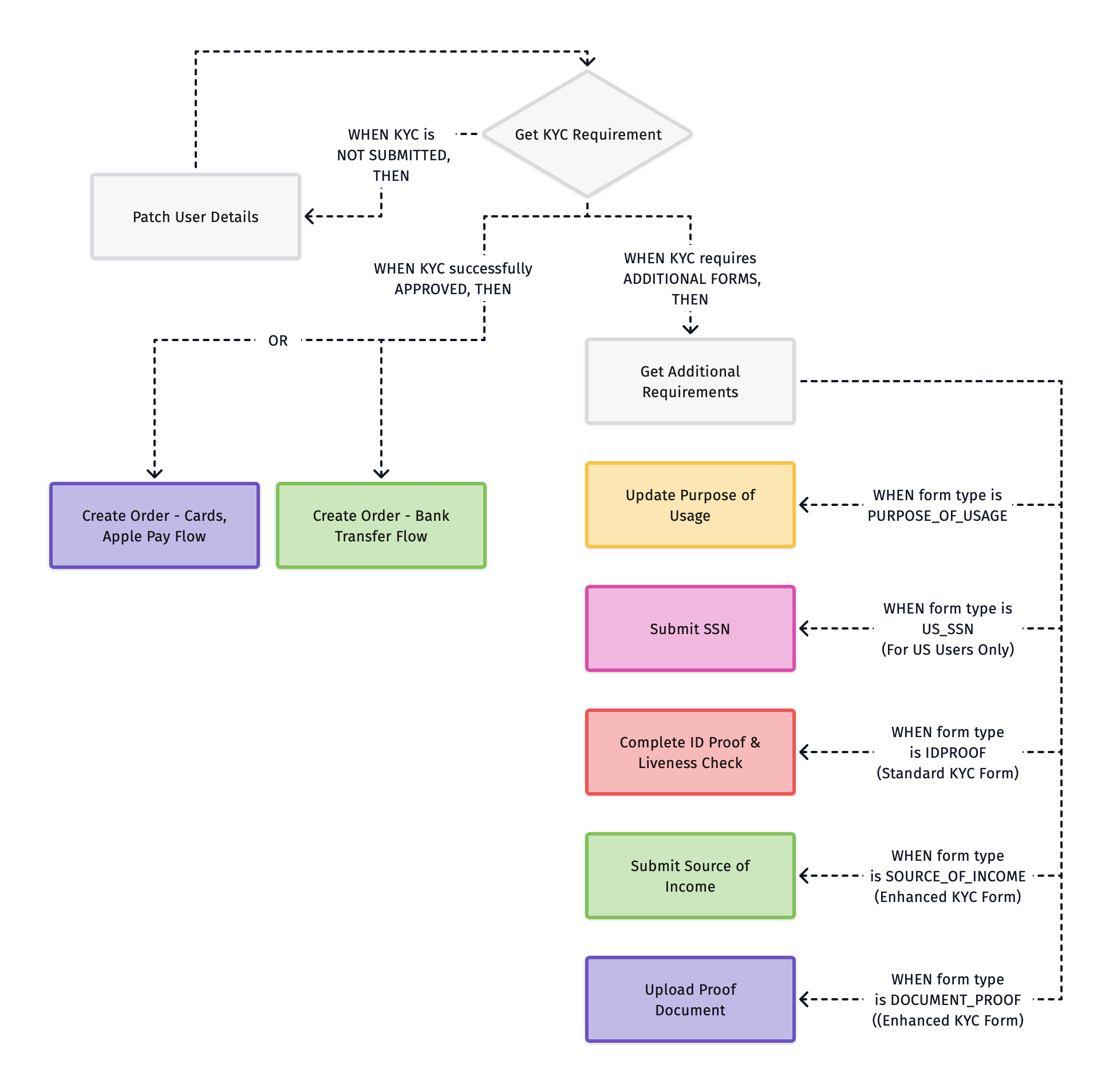
All forms must be submitted in the sequence provided in the **Get Additional Requirements** API.
### KYC Flow - Step-by-Step Guide
Use this step to fetch the current status of the user's KYC, based on the `quoteId`.
Call Get KYC Requirement with the `quoteId` (and the **User Access Token** as required by the API).
|
Condition
|
Next step
|
data.kyc.status = APPROVED
|
Move forward with the Create Order Flow
|
data.kyc.status = NOT\_SUBMITTED
|
Follow Step 2
|
data.kyc.status = ADDITIONAL\_FORMS\_REQUIRED
|
Follow Step 3
|
Call Patch User Details to collect and submit the user's profile and address information.
**Personal Information**
|
User's first name
User's last name
Mobile number with country code
Date of birth (ISO 8601)
|
**Address Information**
|
Street address
City
State or province
Postal or zip code
Country code (ISO 3166-1 alpha-2)
|
Once submitted, return to **Step 1** to re-fetch the updated KYC status.
Call Get Additional Requirements to check which forms still need to be completed.
Check if additional information must be provided for KYC Approval. Multiple forms may appear and must be submitted **in the sequence provided** in the API response:
1. If `type = PURPOSE_OF_USAGE` → Follow **Step 4**
2. If `type = IDPROOF` → Follow **Step 5**
3. If `type = US_SSN` → Follow **Step 6**
4. If `type = SOURCE_OF_INCOME` → Follow **Step 7**
5. If `type = DOCUMENT_PROOF` → Follow **Step 8**
Call Update Purpose of Usage to record the user's reason for buying crypto.
Ask user for their reason to buy crypto (e.g., investing, remittance).
Standard KYC only
Redirect the user to the Transak-hosted KYC widget using the `kycUrl` returned in the Additional Requirements response.
|
Upload a photo ID — Passport, Driver's License, or National ID
Submit a selfie for real-time identity validation
|
This step is handled by the Transak KYC widget. Use the `kycUrl` from the previous API response to redirect the user.
US users only
Call Submit SSN to validate the user's identity using their Social Security Number.
|
9-digit Social Security Number
|
SSN must be submitted before a virtual bank account can be created for the user.
Enhanced KYC only
Call Submit Source of Income to capture the user's primary income source. Required for higher transaction limits.
|
Accepted values: `SALARY`, `BUSINESS`, `INVESTMENTS`, `SAVINGS`
|
Enhanced KYC only
Call Upload Proof Document to submit supporting documentation for the income source selected in the previous step.
The required document type is determined by the source of income submitted in Step 7.
### Different KYC Levels Guide
| KYC Type | KYC Status | User Status | Action |
| ---------- | ------------------------------------------------------ | ------------------------------------------------ | -------------------------------------------------------------------------------------------------------------------------------------------------------------------------- |
| `null` | NOT\_SUBMITTED | ACTIVE | Call **GET KYC Requirement API** → Complete KYC Forms |
| `SIMPLE` | SUBMITTED | ACTIVE | Poll **GET User Details API** |
| `SIMPLE` | APPROVED | ACTIVE | Call **GET KYC Requirement API** → If `APPROVED` place order → If `ADDITIONAL_FORMS_REQUIRED` call Get Additional Requirements API → If `NOT_SUBMITTED` patch user details |
| `SIMPLE` | REJECTED | ACTIVE | Call **GET KYC Requirement API** → If `ADDITIONAL_FORMS_REQUIRED` call Get Additional Requirements API → If `NOT_SUBMITTED` patch user details |
| `STANDARD` | SUBMITTED | ACTIVE | Poll **GET User Details API** |
| `STANDARD` | APPROVED | ACTIVE | Call **GET KYC Requirement API** → If `APPROVED` place order → If `ADDITIONAL_FORMS_REQUIRED` call Get Additional Requirements API |
| `STANDARD` | REJECTED | ACTIVE | Call **GET KYC Requirement API** → If `APPROVED` place order → If `ADDITIONAL_FORMS_REQUIRED` call Get Additional Requirements API → If `NOT_SUBMITTED` patch user details |
| `STANDARD` | REJECTED | DISABLED | Show static screen — Contact Support |
| `ENHANCED` | SUBMITTED | ACTIVE | Poll **GET User Details API** |
| `ENHANCED` | APPROVED | ACTIVE | Call **GET KYC Requirement API** → If `APPROVED` place order |
| `ENHANCED` | REJECTED | ACTIVE | Call **GET KYC Requirement API** → If `APPROVED` place order → If `ADDITIONAL_FORMS_REQUIRED` call Get Additional Requirements API → If `NOT_SUBMITTED` patch user details |
| `ENHANCED` | REJECTED | DISABLED | Show static screen — Contact Support |
### API Sequence
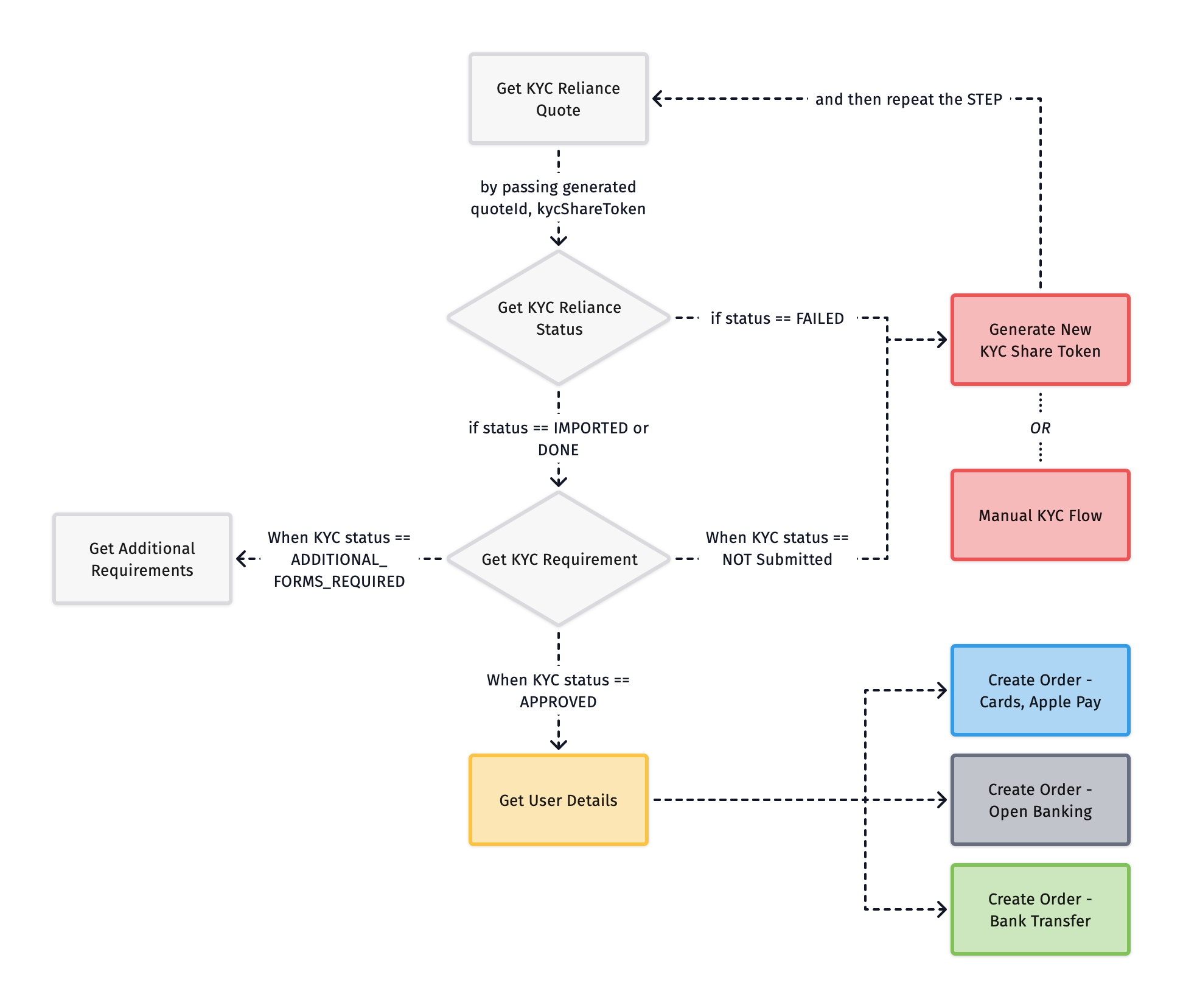
Call Get KYC Reliance Quote with `kycShareTokenProvider` and `kycShareToken` alongside the common fields used in the standard Get Quote API.
On success, you will receive a `quoteId` to use in the next step.
Call Get KYC Reliance Status with the `quoteId` and `kycShareToken` to fetch the user's KYC status, then route accordingly:
|
Generate a **new KYC Share Token** and repeat from Step 1.
Proceed to **Get KYC Steps**.
|
### Things to Consider
1. KYC Reliance supports only SumSub providers, and more are coming soon.
2. KYC Reliance supports only Standard KYC as the default process, where Document ID and Selfie checks are mandatory. The partners should pass the Document ID and Selfie documents to get the complete whitelabel experience to onboard their users seamlessly as per the steps mentioned in the docs.
3. Purpose Of Purchase is a mandatory step in Transak's KYC system, even for KYC Reliance flows.
4. Refer to the detailed step-by-step guide to generating the KYC Share token using SumSub docs.
Call Get KYC Requirement with the `quoteId` to fetch the user's KYC status and route accordingly:
|
When
|
Next step
|
data.kyc.status = APPROVED
|
No further steps in the KYC process. Proceed to Get User Limits.
|
data.kyc.status = NOT\_SUBMITTED
|
User details need to be submitted. Proceed to Patch User Details.
|
data.kyc.status = ADDITIONAL\_FORMS\_REQUIRED
|
More steps in the KYC process are required. Proceed to Get Additional Requirements.
|
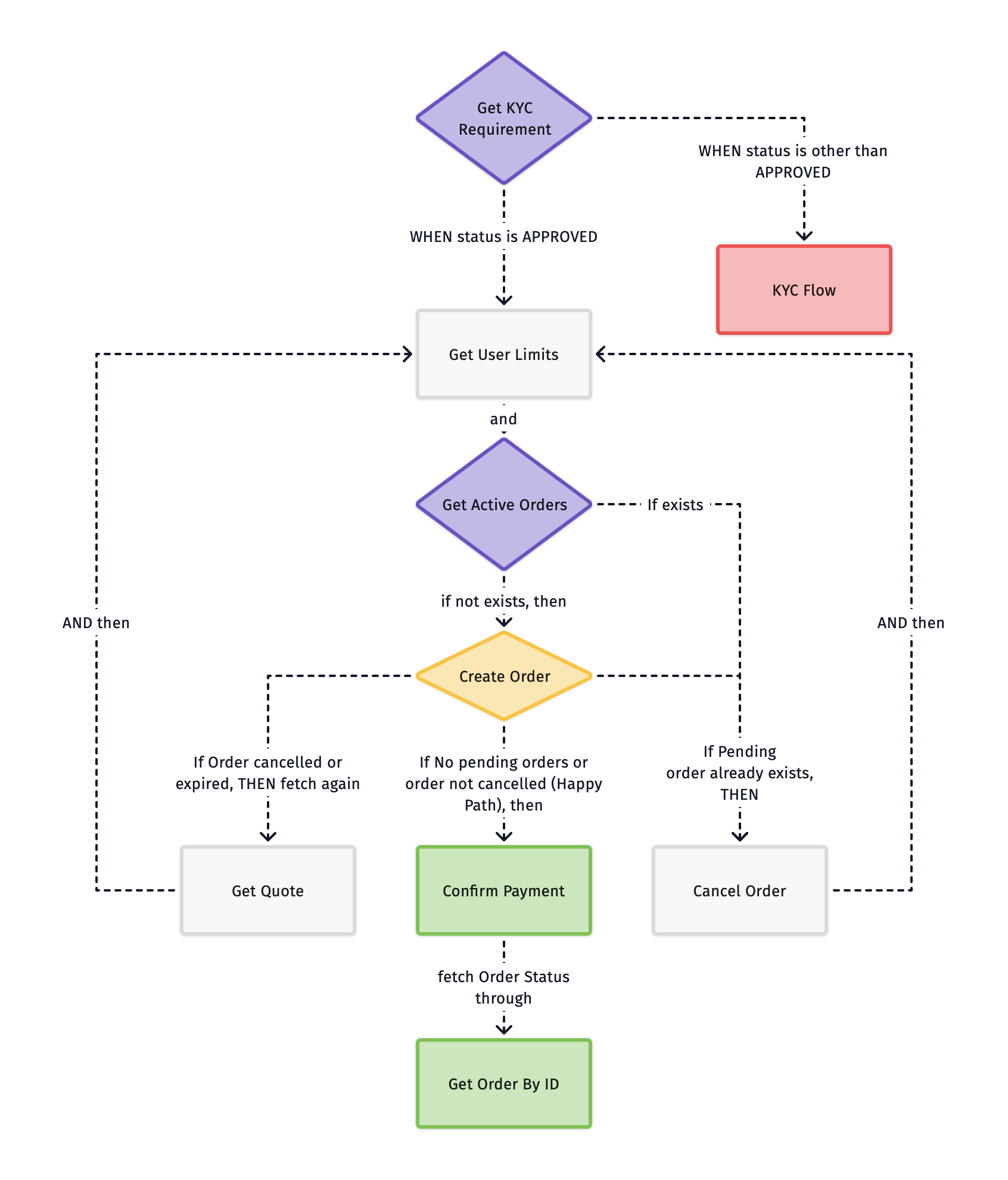
Call Get User Limits with `paymentMethod = bank_transfer` and `fiatCurrency` to fetch the user's monthly, daily, and yearly limits along with available limits to place an order.
On success → proceed to **Get Active Orders**.
Call Get Active Orders to check for any existing pending orders. Transak doesn't support placing multiple orders simultaneously.
|
Proceed to **Cancel Order**
Proceed to **Create Order**
|
Call Create Order passing `quoteId`, `paymentInstrumentId` (payment method), and `walletAddress`.
|
Proceed to **Confirm Payment**
**Cancel Order** → repeat **Get User Limits**
**Get Quote** → repeat **Get User Limits**
|
Call Confirm Payment with `orderId` and `paymentMethod` to confirm the bank transfer.
On success → proceed to **Get Order By ID**.
Call Cancel Order with `orderId` and `cancelReason` to cancel a pending order.
This step is only required when an existing active order is detected. After cancellation, return to **Get User Limits** to start a fresh order.
Call Get Order By ID with `orderId` to poll the final order status.
This flow enables users to OnRamp using existing or new card details, including Apple Pay. The flow uses a session ID to initialize a payment widget, enabling a smooth, embedded experience within the partner's UI.
Call Get KYC Requirement with the `quoteId` to fetch the KYC status and route accordingly:
|
When
|
Next step
|
data.kyc.status = APPROVED
|
No further steps in the KYC process. Proceed to Get User Limits.
|
data.kyc.status = NOT\_SUBMITTED
|
User details need to be submitted. Proceed to Patch User Details.
|
data.kyc.status = ADDITIONAL\_FORMS\_REQUIRED
|
More steps in the KYC process are required. Proceed to Get Additional Requirements.
|
Call Get User Limits with the payment method (`credit_debit_card` or `apple_pay`) and `fiatCurrency` to fetch the user's monthly, daily, and yearly limits.
On success → proceed to **Get Active Orders**.
Call Get Active Orders to check for any existing pending orders. Transak doesn't support placing multiple orders simultaneously.
|
Proceed to **Cancel Order**
Proceed to **Create Widget URL**
|
Call Create Widget URL by passing the **User Access Token** and **Partner Access Token** to generate a payment `widgetUrl`.
Each `widgetUrl` is **single-use only** and **valid for 5 minutes** from the time of creation.
Open the Payment Widget using the `widgetUrl` received from the previous step. The widget handles card entry or Apple Pay validation.
**Example URL:**
```
https://global-stg.transak.com?apiKey=YOUR_API_KEY&sessionId=eyJhbGciOiJIUzI1NiIsInR5cCI6IkpXVCJ9...
```
Through the widget, users can enter new card details or use previously saved cards. Apple Pay is supported if the user's browser and device configuration allow it.
Card information is submitted via the widget. The backend API securely processes the payment and places the order.
After order placement, the order status is delivered in real time via a WebSocket connection. Partners can subscribe to various order status events.
Refer to the WebSocket integration docs to listen to order events.
The **Open Banking payment** method allows users in the **EU and UK** to fund crypto purchases via a **secure, real-time bank transfer.**
Open Banking is available under the Get Fiat Currencies API with payment method ID referred to as `pm_open_banking` or displayed to users as **Easy Bank Transfer**.
This feature is available only for users whose **KYC country is supported** under Plaid's Open Banking framework (e.g., UK, Ireland, Germany, France, etc.). The list of supported countries and banks can be found here.
Call Get Fiat Currencies to confirm supported fiat currencies (e.g., EUR/GBP) and verify the availability of `pm_open_banking` as a payment method.
Call Get Quote to generate a quote for fiat → crypto using Open Banking as the selected payment method.
Call Get KYC Requirement with the `quoteId` (and the **User Access Token** as required by the API) to validate KYC for the provided quote and route accordingly:
|
When
|
Next step
|
data.kyc.status = APPROVED
|
No further steps in the KYC process. Proceed to Get User Limits.
|
data.kyc.status = NOT\_SUBMITTED
|
User details need to be submitted. Proceed to Patch User Details.
|
data.kyc.status = ADDITIONAL\_FORMS\_REQUIRED
|
More steps in the KYC process are required. Proceed to Get Additional Requirements.
|
Call Get User Limits to validate the user's daily, monthly, and yearly limits for `pm_open_banking`.
Call Get Active Orders to check for any existing pending orders. Transak doesn't support placing multiple orders simultaneously.
|
Proceed to **Cancel Order**
Proceed to **Create Order**
|
Call Create Order with `quoteId`, `walletAddress`, and `paymentInstrumentId: pm_open_banking`.
|
The Open Banking authorization URL
|
The `redirectUrl` must be opened in a webview or browser to launch the Open Banking authorization flow.
Call Cancel Order to cancel a pending order (if still `AWAITING_PAYMENT_FROM_USER`) by providing `orderId` and `cancelReason`.
Call Get Order By ID with `orderId` to fetch the final order status.