
For AI agents: a documentation index is available at the root level at /llms.txt and /llms-full.txt. Append /llms.txt to any URL for a page-level index, or .md for the markdown version of any page.
Dashboard
DocsAPI Reference
DocsAPI Reference
    • What is Transak
  • Features
    • Auth Reliance
    • KYC Reliance using Sumsub
    • Webhooks
    • WebSockets
  • Products Overview
    • On Ramp
    • Off Ramp
    • NFT Checkout
  • Integration Options
    • API
  • Customization Options
    • Query Parameters
    • Customizing theme using query parameters
  • Guides
    • How To Create a Partner Dashboard Account
    • How to Add Partner Fees and Set Up Partner Payouts
    • How to Test using Sandbox Credentials
    • How to Test ACH Pull Transaction in Sandbox
    • How to Test Apple Pay in Sandbox
    • How to Track Order Status
    • Transak Different KYC Levels
    • How to Submit FCA Requirements
    • How to Use Advanced Query Params
    • How to Create a Widget URL with Parameters and Test Different Scenarios
    • How to Generate Calldata for NFT Checkout
    • How to Add NFT Smart Contract in the Dashboard and Create a contractId
    • Get Price based on User Region
    • How to Create Partner Access Token
    • How to Decrypt the Webhook Payload
    • How to add MCP Server for Transak Documentation
    • Widget with API Customization
    • Integration Update - Mandatory Migration to API based Transak Widget URL
    • Biconomy: Simplified Onboarding Using MEE-Compatible Smart Accounts
    • Partner FAQs
    • Need Help?
Dashboard
LogoLogo
On this page
  • Problem Statement
  • Our Solution
  • How does it work?
  • Mandatory Fields
  • How to integrate?
  • Sumsub Configurations
  • Integration Options
  • Integration Steps
  • User Flow Demo
Features

KYC Reliance using Sumsub

Reuse existing Sumsub KYC data to eliminate redundant user verification
||View as Markdown|
Was this page helpful?
Edit this page
Previous

Auth Reliance

Next

Webhooks

Built with

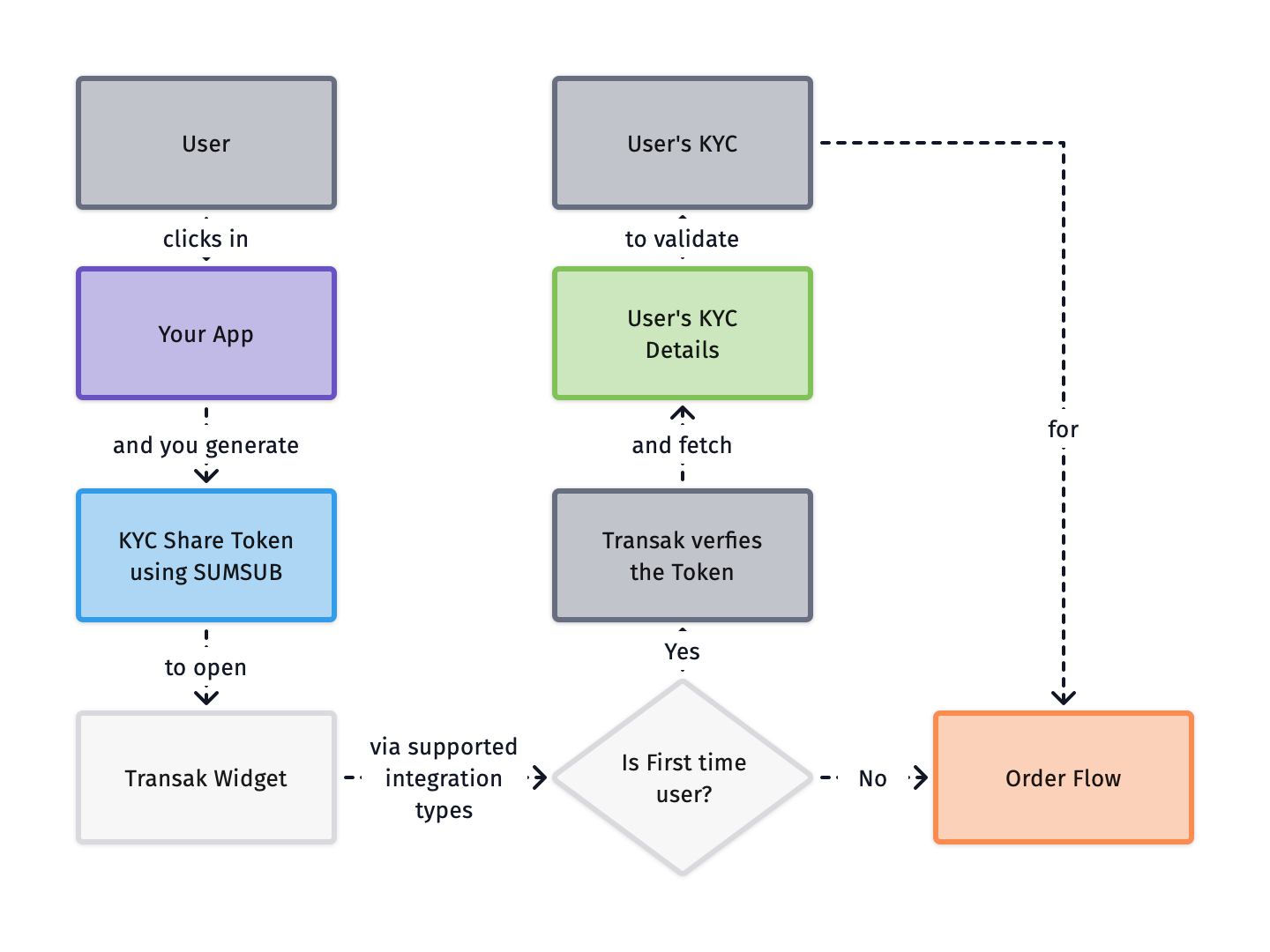
KYC Reliance using Sumsub allows partners to reuse their existing Sumsub KYC data with Transak, eliminating the need for users to complete verification again.

Problem Statement

Traditional integration flows require users to complete KYC verification separately for each platform, creating unnecessary friction and delays in the user journey.

Here are some of the key challenges with duplicate KYC processes:

Redundant verification

Users must repeat KYC verification even though they’re already verified on partner platform.

Slower onboarding

Additional KYC steps significantly delay user onboarding and increase time to first transaction.

Poor user experience

Users are frustrated by having to upload documents and complete verification multiple times.

Lower conversion rates

Duplicate KYC requirements create drop-off points that reduce user conversion and activation.

Our Solution

KYC Reliance allows partners to share their existing KYC data with Transak using Sumsub, eliminating duplicate verification and creating a seamless one-click onboarding experience.

Here are some of the key benefits of the KYC Reliance solution:

Instant Onboarding

Onboard verified users to Transak in under a minute without additional verification.

No Repeat KYC

Users leverage their existing KYC verification without re-uploading documents or repeating checks.

Secure Data Sharing

Self-serve, secure integration through Sumsub’s token-based KYC data sharing.

Higher Conversion

Eliminate KYC friction to significantly improve user activation and conversion rates.

How does it work?

kyc-reliance-sumsub

Mandatory Fields

For seamless user onboarding, ensure the following fields are validated in Sumsub and included in the shared token:

FieldValidationValid Format
First Name

1 to 50 characters

John

Last Name

1 to 50 characters

Doe

Date of Birth (DOB)

Age 18–150 years

dd/mm/yyyy, dd-mm-yyyy, dd.mm.yyyy

Mobile Number

Valid number with + and country code

+11234567890, +919876543210

Address Line 1

1 to 200 chars, at least one alphabetic, valid postcode format

123 Main Street, 2nd Avenue

Address Line 2

Optional, 1 to 200 chars

—

City

1 to 50 characters

Austin

State

1 to 100 characters

Texas

Post Code

Valid postcode

45123

Country Code

Valid country code

FRA, IND

ID Document

Valid supported country document

Passport, Driver’s License, Residence Permit, ID Card

Advanced Liveliness

Valid live selfie

Live selfie

How to integrate?

Sumsub Configurations
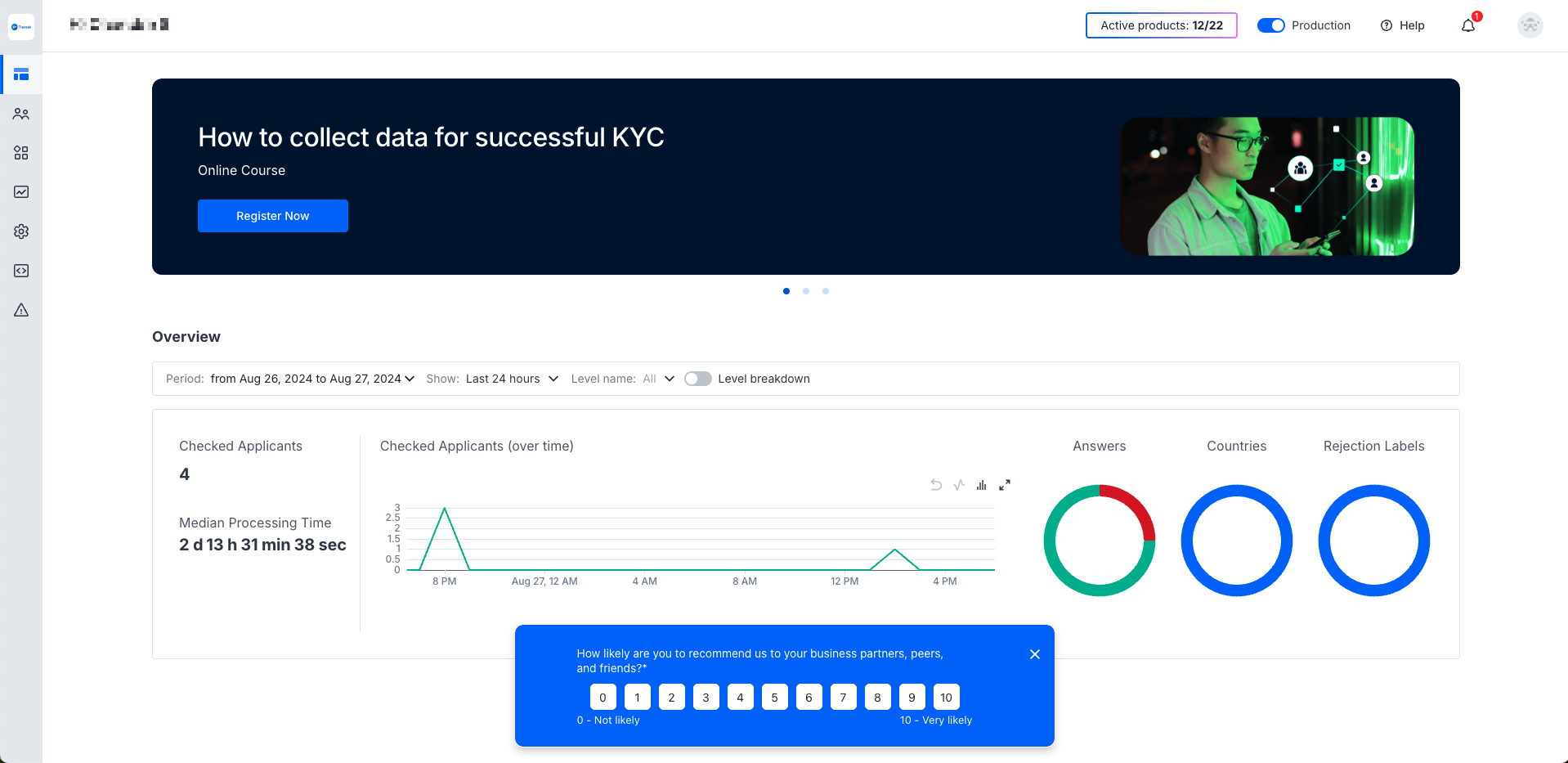
Dashboard
1

Log in to Sumsub Dashboard

Access your Sumsub account at cockpit.sumsub.com.

Sumsub Dashboard
2

Create Application Level

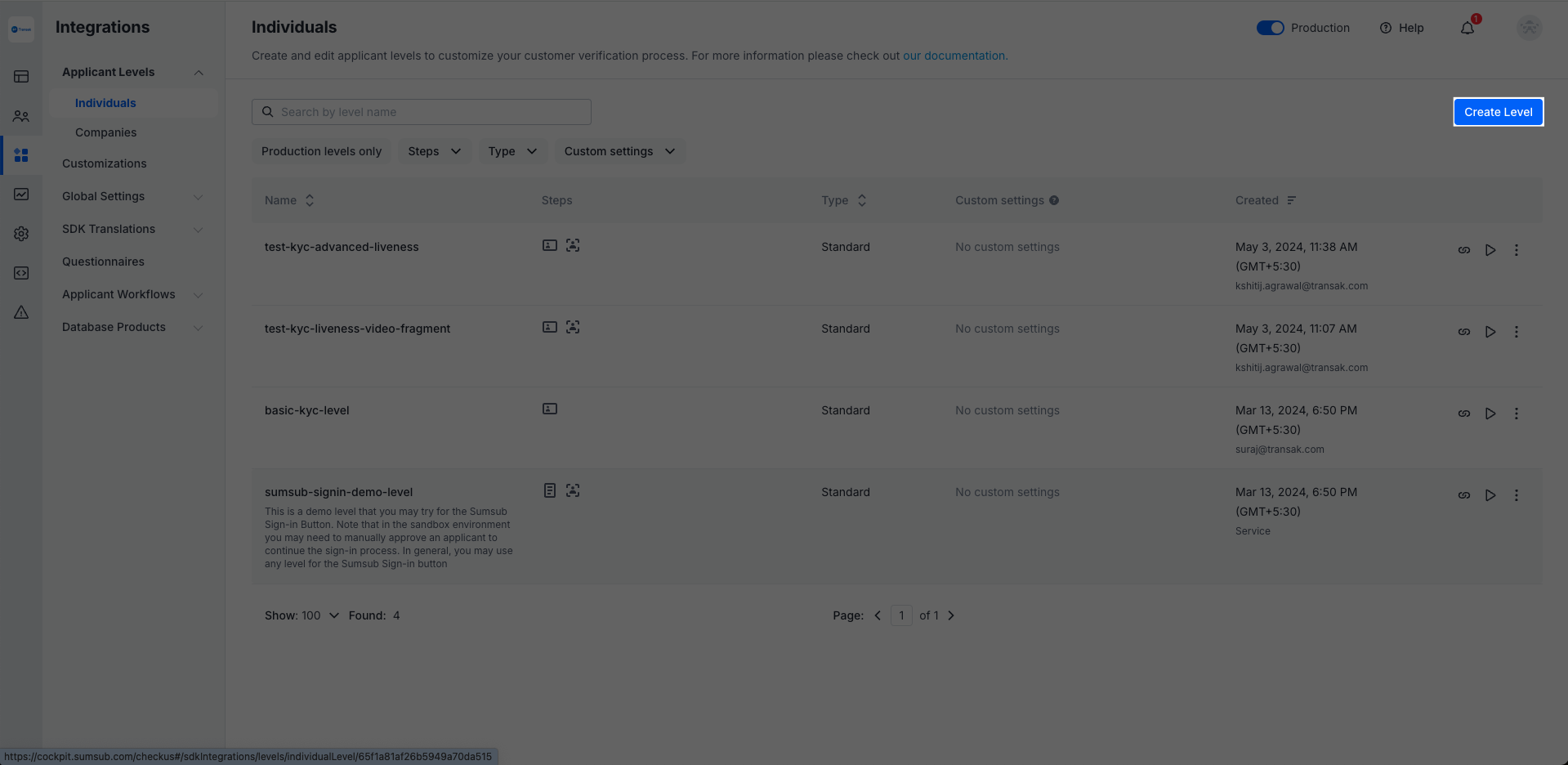
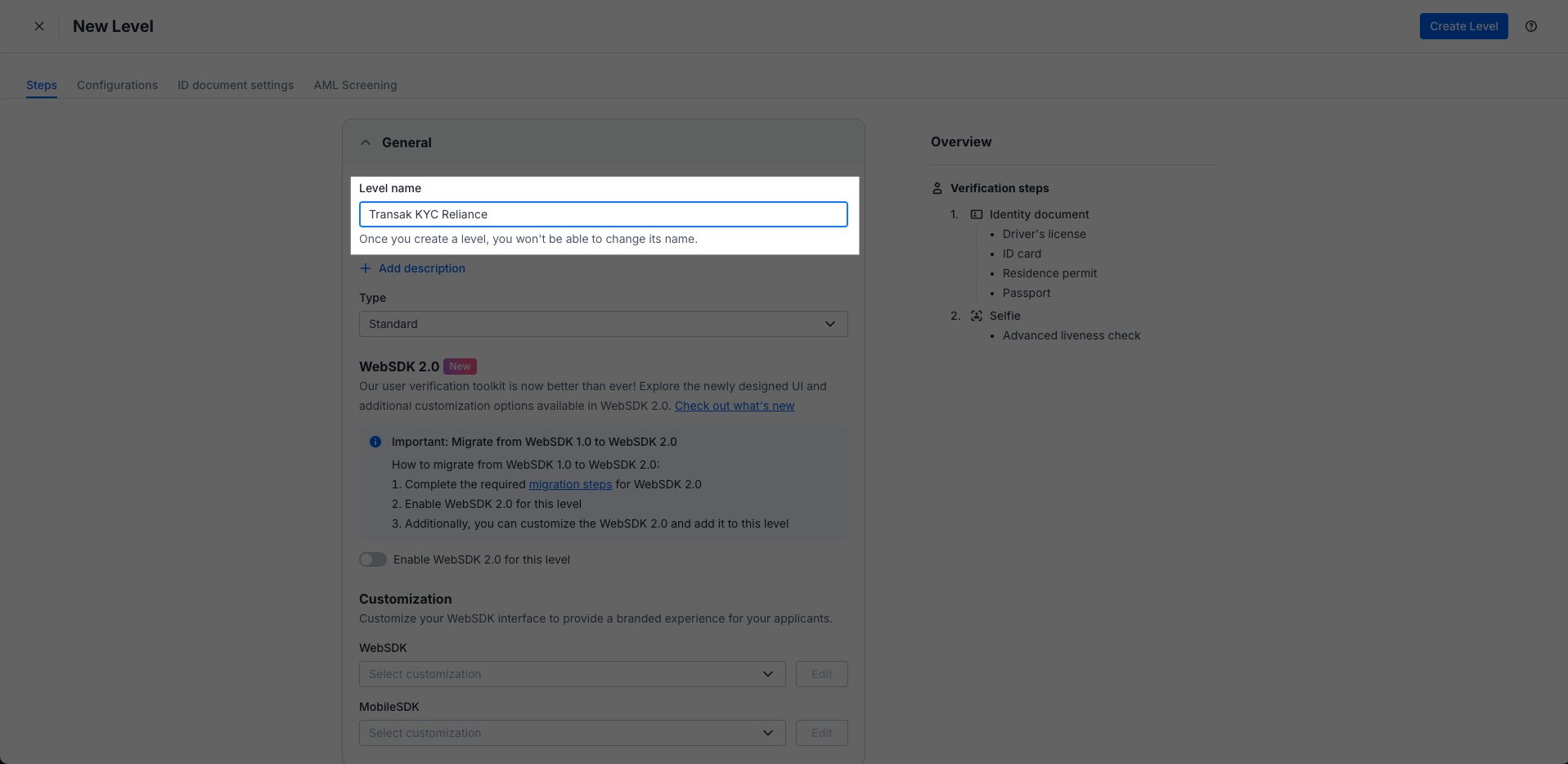
Go to Integrations → Application Levels → Individual, click Create Level, and name it Transak KYC Reliance (or use your preferred identifier).

Create Application Level
Level Name
3

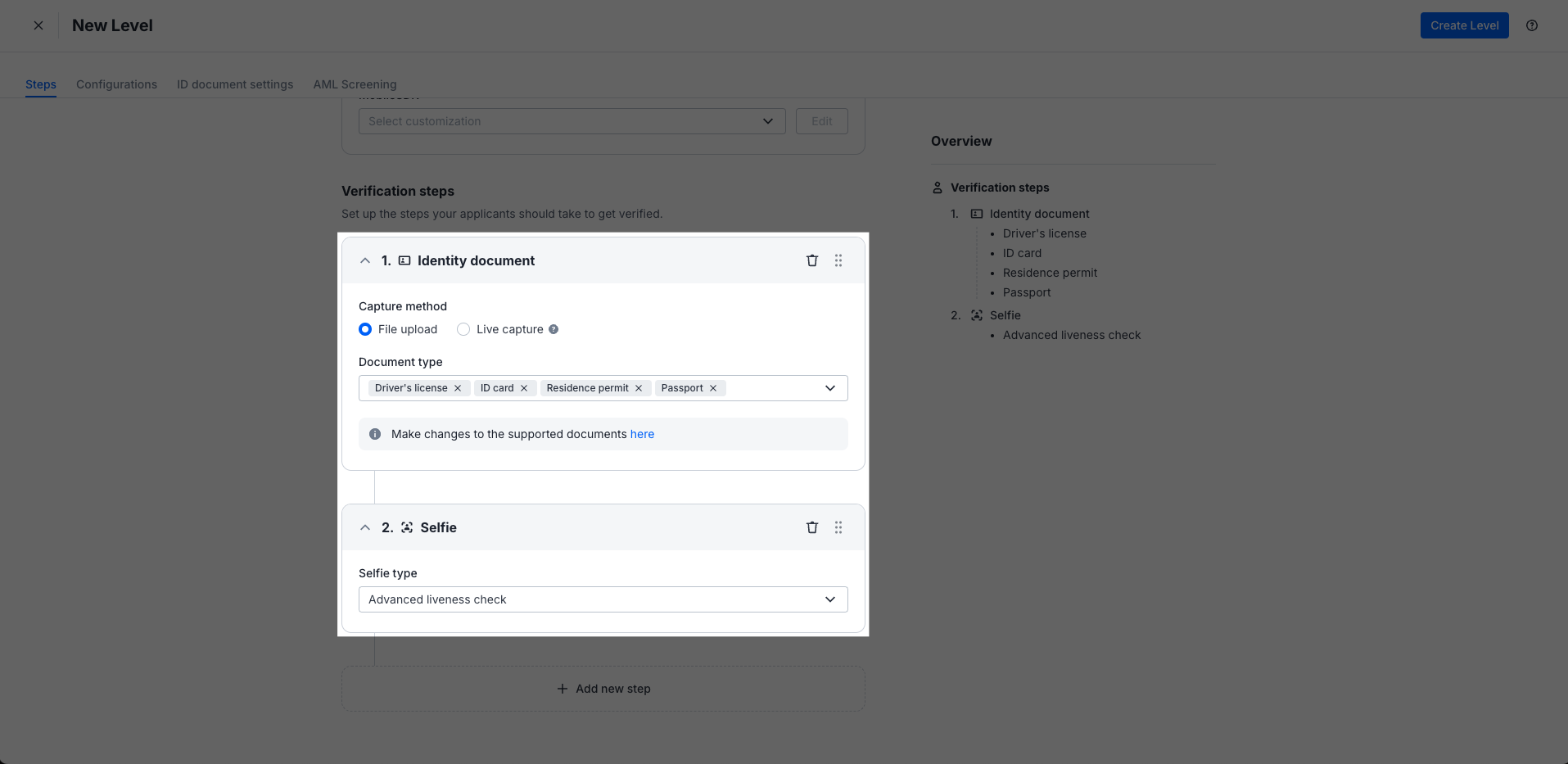
Configure Required Documents

Enable Identity document and Selfie verification types. Ensure all document types and selfie options are properly configured.

Document Configuration
Donor Access Token
1

Request Donor Access Token From Transak

Partners need to share their respective email IDs with Transak to receive the donor access token via a secure link.

2

Log in to Sumsub Dashboard

Access your Sumsub account at cockpit.sumsub.com.

3

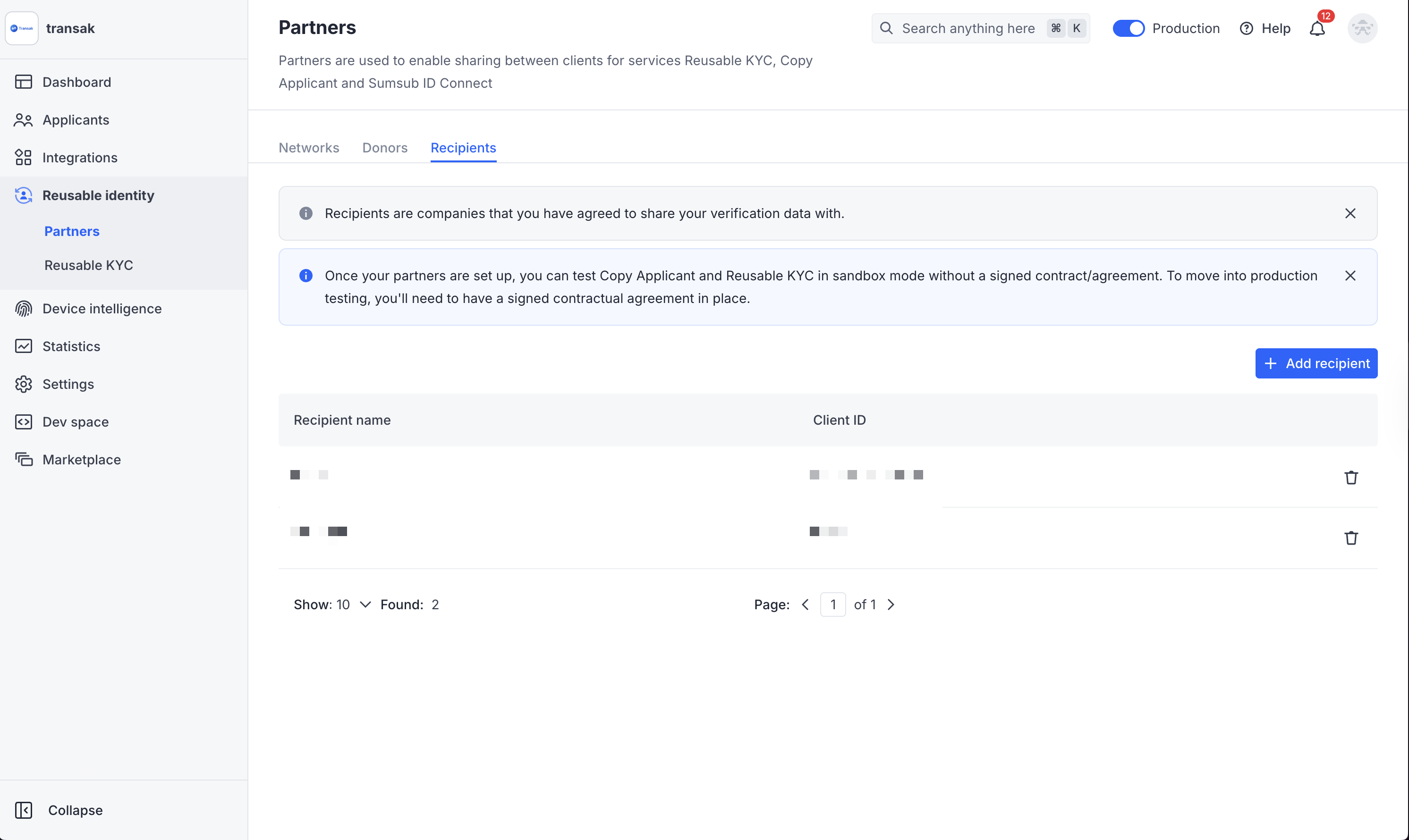
Navigate to Reusable Identity → Partners

Go to the Partners section in your Sumsub dashboard.

Sumsub Dashboard
4

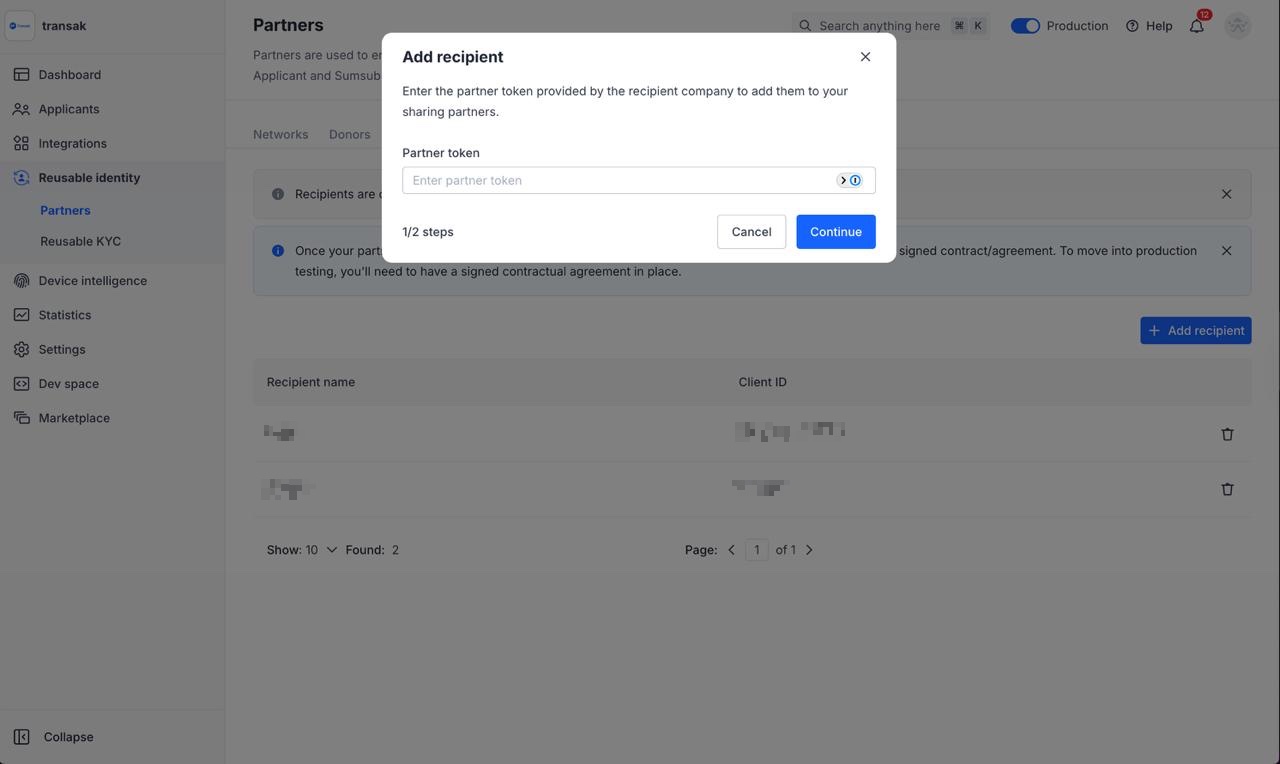
Add Recipient

Click Add Recipient and enter the donor token provided via secure link in the pop-up.

Add Recipient

Integration Options

API
Web
Mobile WebView
Whitelabel API

Integrate our APIs in your backend to build a fully custom UI and user journey.

Integration Steps

1

Log in to Sumsub Dashboard

Access your Sumsub dashboard at cockpit.sumsub.com and open your project.

Sumsub Dashboard
2

Retrieve Applicant ID

Retrieve your APPLICANT_ID (e.g., 665xxxxxxxxxxxx6a0) from the dashboard.

3

Generate KYC Share Token

Generate your KYC share token using the Sumsub API with the following parameters:

applicantId
stringRequired

The Applicant ID retrieved from Step 2

forClientId
stringRequired

Must be set to transak to share data with Transak

ttlInSecs
numberRequired

Token validity in seconds (e.g., 600 for 10 minutes). Maximum 1200 seconds (20 minutes).

API Request:

$curl --request POST \
> --url https://api.sumsub.com/resources/accessTokens/shareToken \
> --header 'content-type: application/json' \
> --data '{
> "applicantId": "APPLICANT_ID",
> "forClientId": "transak",
> "ttlInSecs": "600"
> }'
4

Pass KYC share token to Transak (Embed Integration)

Include the KYC share token in your Create Widget URL with the following parameters:

kycShareTokenProvider
stringRequired

Set to SUMSUB (hardcoded value for Sumsub provider)

kycShareToken
stringRequired

The secured KYC share token generated in Step 3

API Request:

$curl --request POST \
> --url https://api-gateway-stg.transak.com/api/v2/auth/session \
> --header 'accept: application/json' \
> --header 'access-token: YOUR_ACCESS_TOKEN' \
> --header 'authorization: YOUR_USER_AUTH_TOKEN' \
> --header 'content-type: application/json' \
> --data '{
> "widgetParams": {
> "apiKey": "YOUR_API_KEY",
> "referrerDomain": "yourdomain.com",
> "kycShareTokenProvider": "SUMSUB",
> "kycShareToken": "eyJhbGciOiJub25lIn0..."
> }
>}'

User Flow Demo

1

Load the Widget

Initialize the widget with the appropriate query parameters using any integration method.

Load the Widget
2

Email Verification

Enter your email address and verify using the OTP sent to your inbox. Proceed upon successful verification.

Email Verification
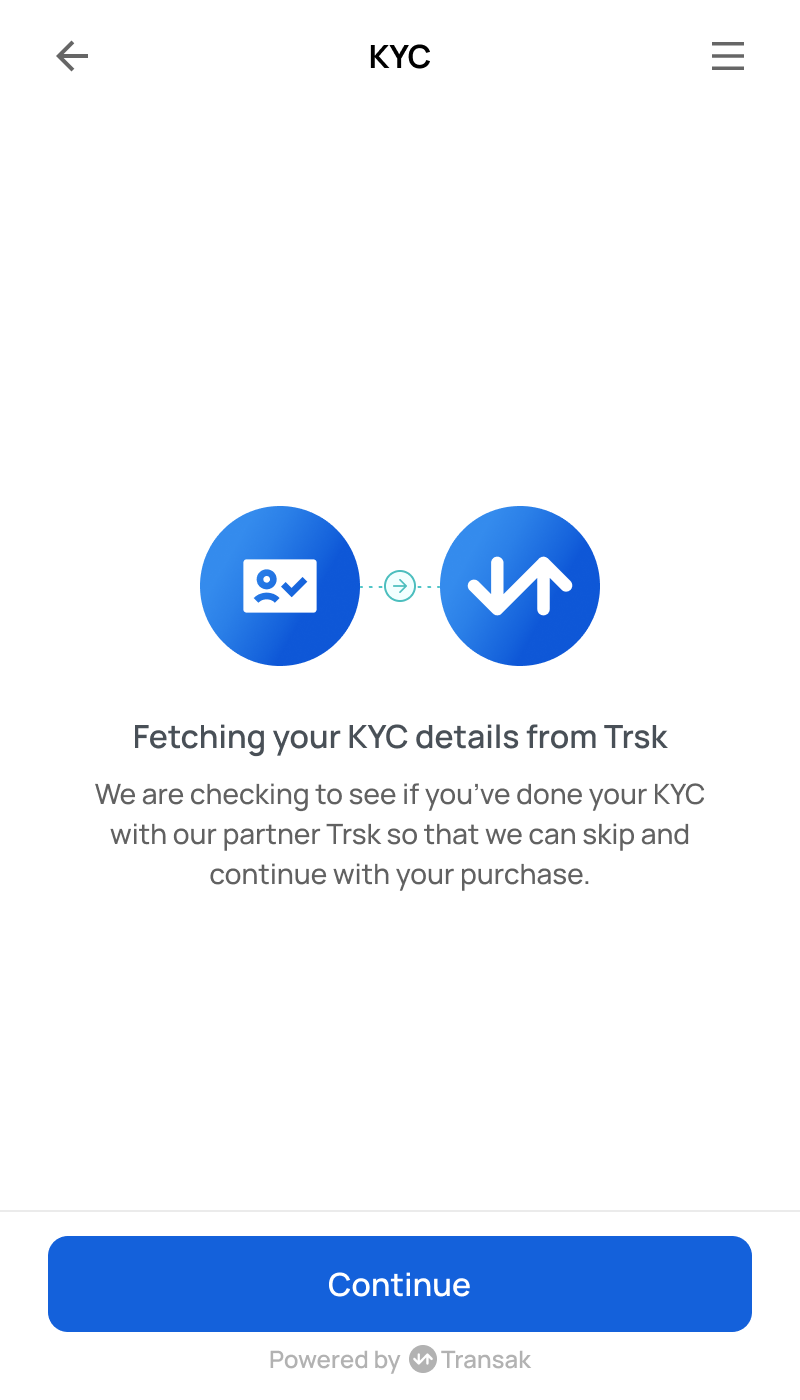
3

KYC Data Fetching

The system fetches KYC data using the shared token from Sumsub.

KYC Data Fetching
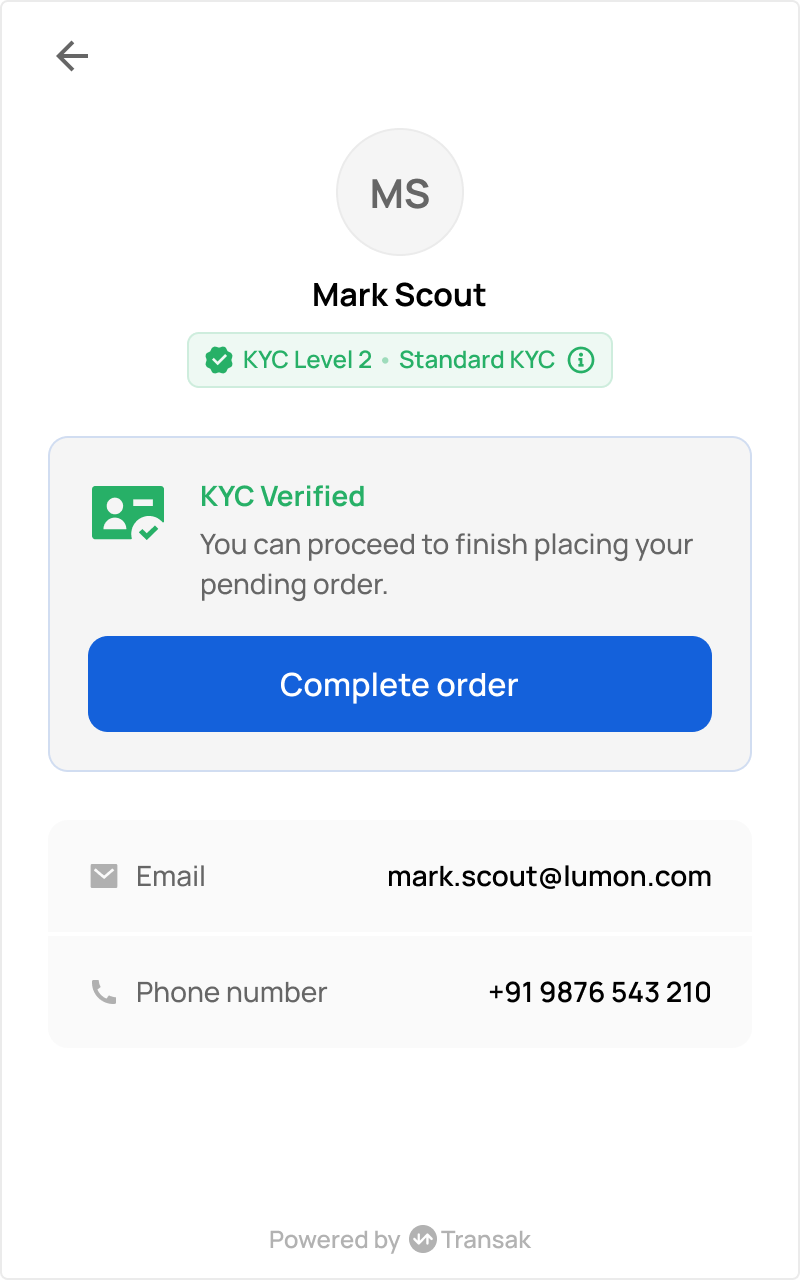
4

Order Placement

Transak has secured the KYC data. The user is ready to place an order instantly.

Order Placement