

Whitelabel API
A complete API solution for building custom on/off ramp experiences.
The Transak Whitelabel API enables partners to integrate Transak products directly into their own platforms using APIs, without displaying any third-party user interface (such as the Transak Widget).
Partners maintain complete control over the user interface and end-to-end user journey, while Transak manages the backend complexities through APIs, including KYC, compliance, liquidity, payment processing, and fraud management.
Who Should Use This?
This solution is ideal for partners who want to fully own and control the E2E user journey, including the user interface, experience, and flow.
Key Capabilities
Build and control the complete user journey, from authentication and KYC to order creation and tracking, without any third-party UI.
Partner Integration Prerequisites
Contact & Request Whitelabel APIs access
Follow the steps in the Need help in Integration section to reach us. Then raise the request to enable Whitelabel APIs for your API key and share your public IP addresses with Transak for whitelisting to use our APIs in your backend.
Start Whitelabel API Integration
Start by designing and implementing the complete user flow, including error handling. See the Lookup API reference to begin.
Include Transak's Terms & Conditions
You must include Transak’s Terms of Service within their own Terms & Conditions. End users must be able to review and acknowledge Transak’s T&C as part of the user journey.
Current Limitations & Known Constraints
Whitelabel APIs are to be called only from the partner backend and subjected to the whitelisting of partner IP addresses. Direct API calls from the frontend apps are not supported.
API Overview
Lookup
User
Login Flow
Not Logged In Flow
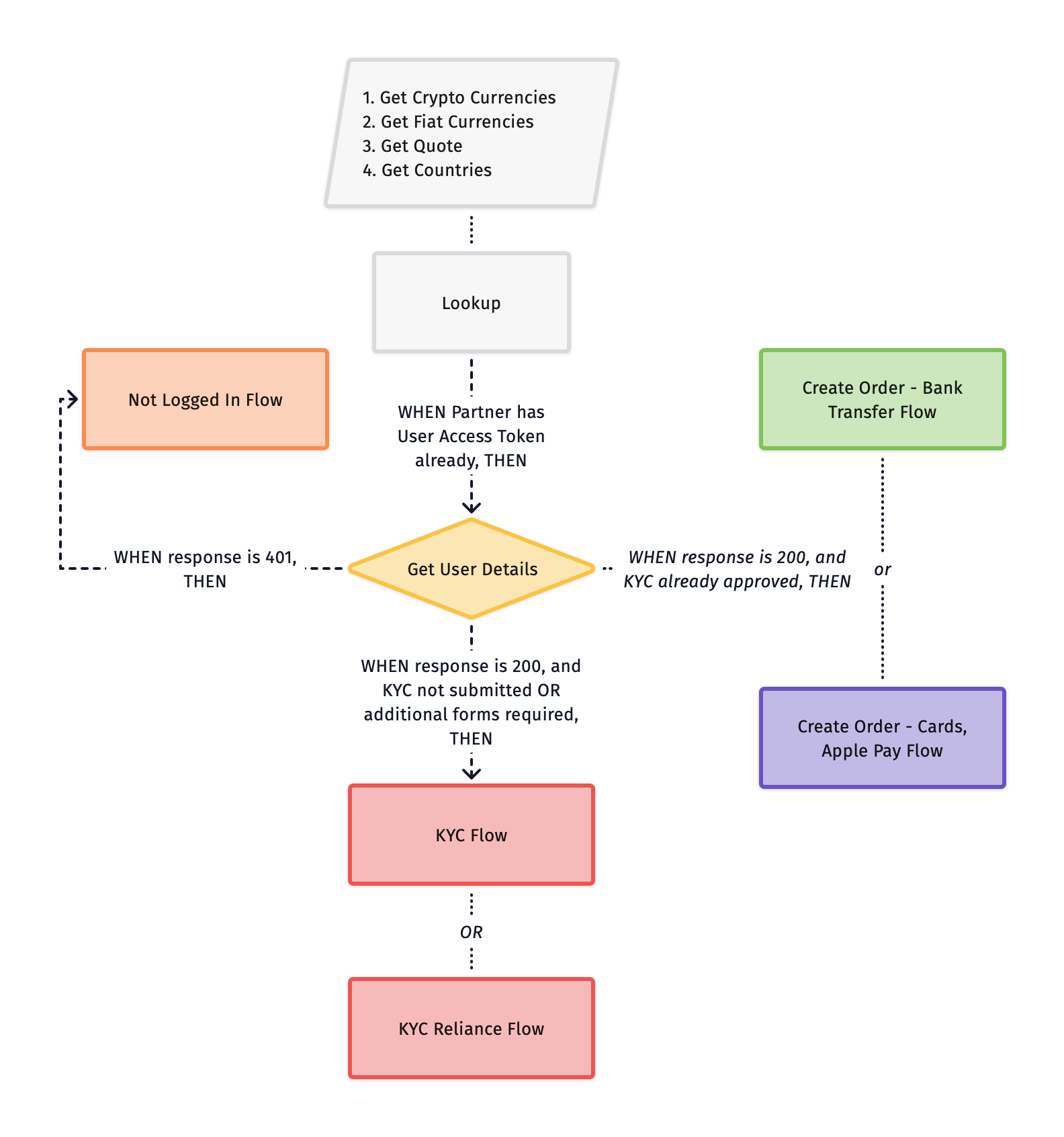
Get User Details
Pass the existing User Access Token to Get User Details to fetch the user’s KYC status. Route the user as follows:
KYC
This document provides a detailed explanation of KYC flows, covering Simple KYC, Standard KYC and Enhanced KYC, along with the required API interactions and processes. KYC is a mandatory step in compliance with regulatory requirements before users can place orders on Transak.
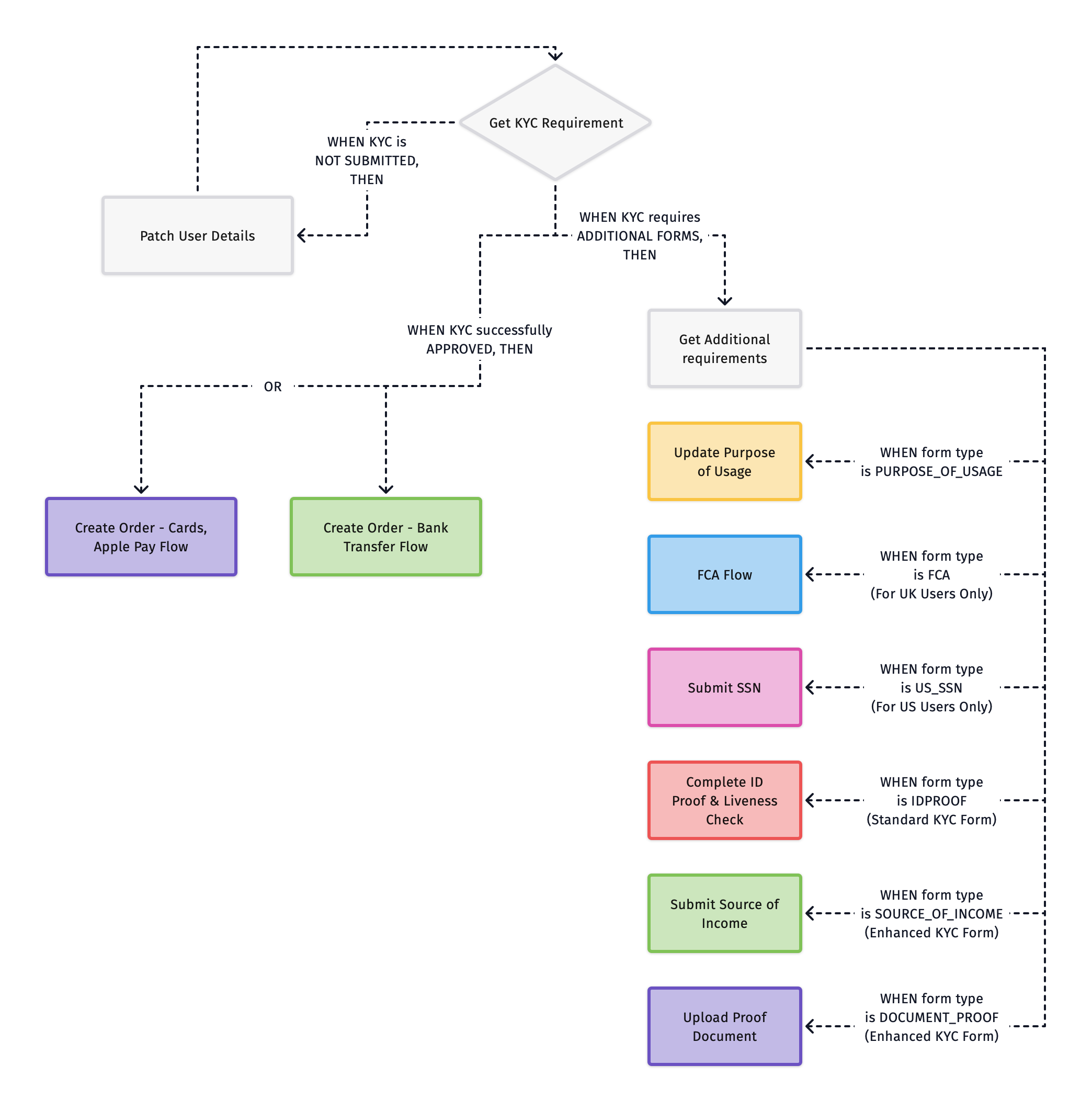
KYC Flow Chart
Fetch KYC Requirement Based on Quote ID
The KYC requirements are determined dynamically using the quote ID. Transak supports multi-level KYC, meaning different users may have different requirements based on country, regulations, and transaction limits.
When fetching KYC Requirement, there can be three status -
- Personal Details → First name, last name, email, and mobile number.
- Address Details → User’s residential details (address, city, state, zip code).
- Purpose of Usage → Used for compliance with regulations.
- ID Proof → Required only if Standard or Enhanced KYC is needed.
- SSN → Required only for US KYC users.
- FCA → Required only for UK KYC users.
- Source of Income → Required only if Enhanced KYC is needed.
- Proof Document → Required only if Enhanced KYC is needed.
All forms must be submitted in the sequence provided in the Get Additional Requirements API.
KYC Flow - Step-by-Step Guide
Fetch KYC Status
Call Get KYC Requirement with the quoteId to fetch current status of the user’s KYC.
Patch User Details
Call Patch User Details to collect and submit the user’s personal and address information.
Once submitted, return to Step 1 to re-fetch the updated KYC status.
Get Additional Requirements
Call Get Additional Requirements to check which forms still need to be completed.
Check if additional information must be provided for KYC Approval. Multiple forms may appear and must be submitted in the sequence provided in the API response:
- If
type = PURPOSE_OF_USAGE→ Follow Step 4 - If
type = IDPROOF→ Follow Step 5 - If
type = US_SSN→ Follow Step 6 - If
type = FCA→ Follow Step 7 - If
type = SOURCE_OF_INCOME→ Follow Step 8 - If
type = DOCUMENT_PROOF→ Follow Step 9
Complete ID Proof & Liveness Check (For Standard KYC)
Redirect the user to the Transak-hosted KYC Widget using the kycUrl returned in the Additional Requirements response.
Submit SSN (US Users Only)
Call Submit SSN to validate the user’s identity using their Social Security Number.
Submit FCA (UK Users Only)
FCA (Financial Conduct Authority) compliance is required for all UK users. The flow covers three sequential steps — investor categorization, a compliance agreement, and a risk assessment.
See the dedicated guide for the full API sequence, status handling, and step-by-step integration details:
Submit Source of Income (For Enhanced KYC)
Call Submit Source of Income to capture the user’s primary income source. Required for higher transaction limits.
Upload Proof Document (For Enhanced KYC)
Call Upload Proof Document to submit supporting documentation for the income source selected in the previous step.
Different KYC Levels Guide
KYC Reliance
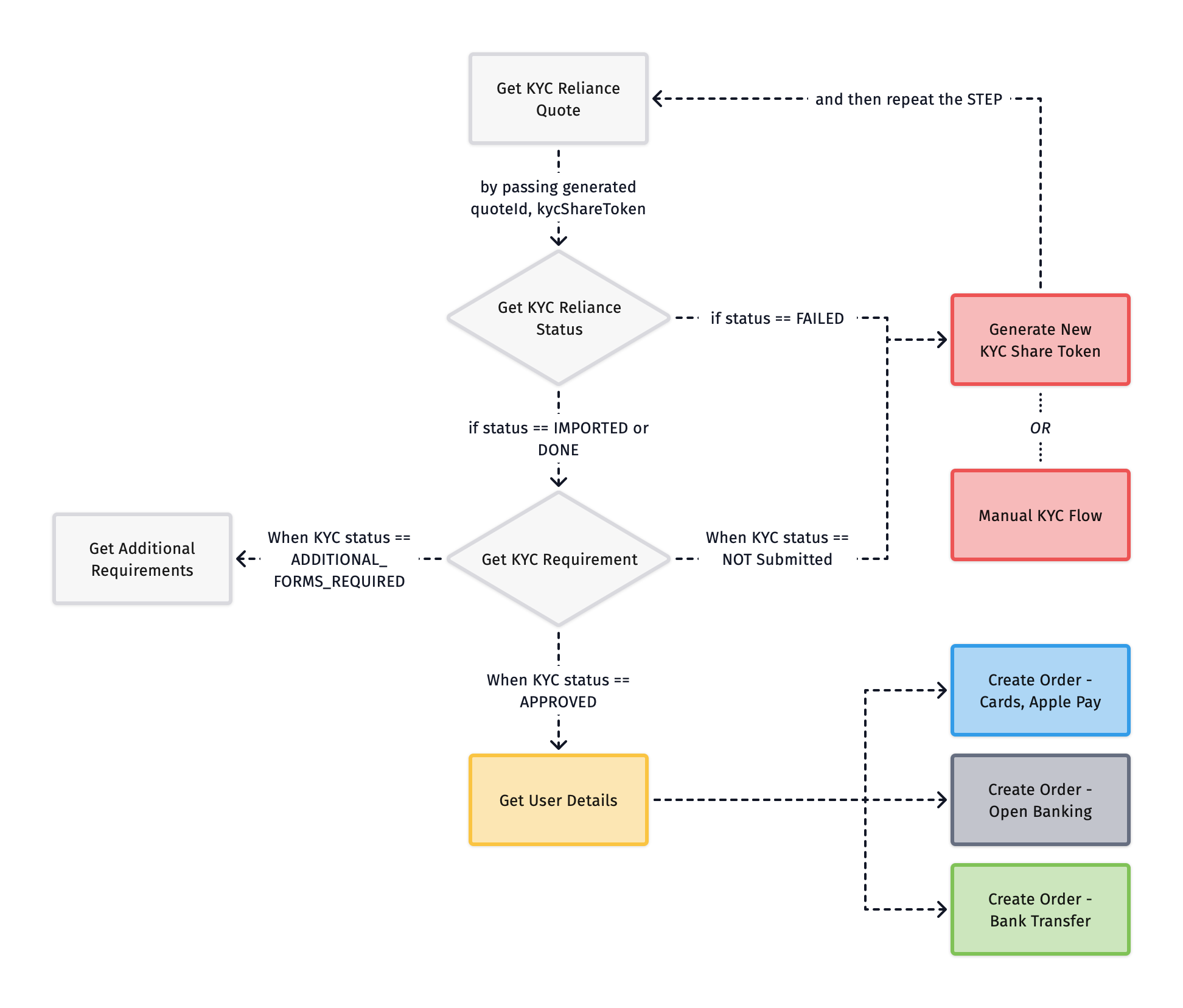
API Sequence
Get KYC Reliance Quote
Call Get KYC Reliance Quote with kycShareTokenProvider and kycShareToken alongside the common fields used in the standard Get Quote API.
On success, you will receive a quoteId to use in the next step.
Get KYC Reliance Status
Call Get KYC Reliance Status with the quoteId and kycShareToken to fetch the user’s KYC status, then route accordingly:
Things to Consider
- KYC Reliance supports only SumSub providers, and more are coming soon.
- KYC Reliance supports only Standard KYC as the default process, where Document ID and Selfie checks are mandatory. The partners should pass the Document ID and Selfie documents to get the complete whitelabel experience to onboard their users seamlessly as per the steps mentioned in the docs.
- Purpose Of Purchase is a mandatory step in Transak’s KYC system, even for KYC Reliance flows.
- Refer to the detailed step-by-step guide to generating the KYC Share token using SumSub docs.
Orders
Bank Transfer
Cards
Apple Pay
Google Pay
Open Banking
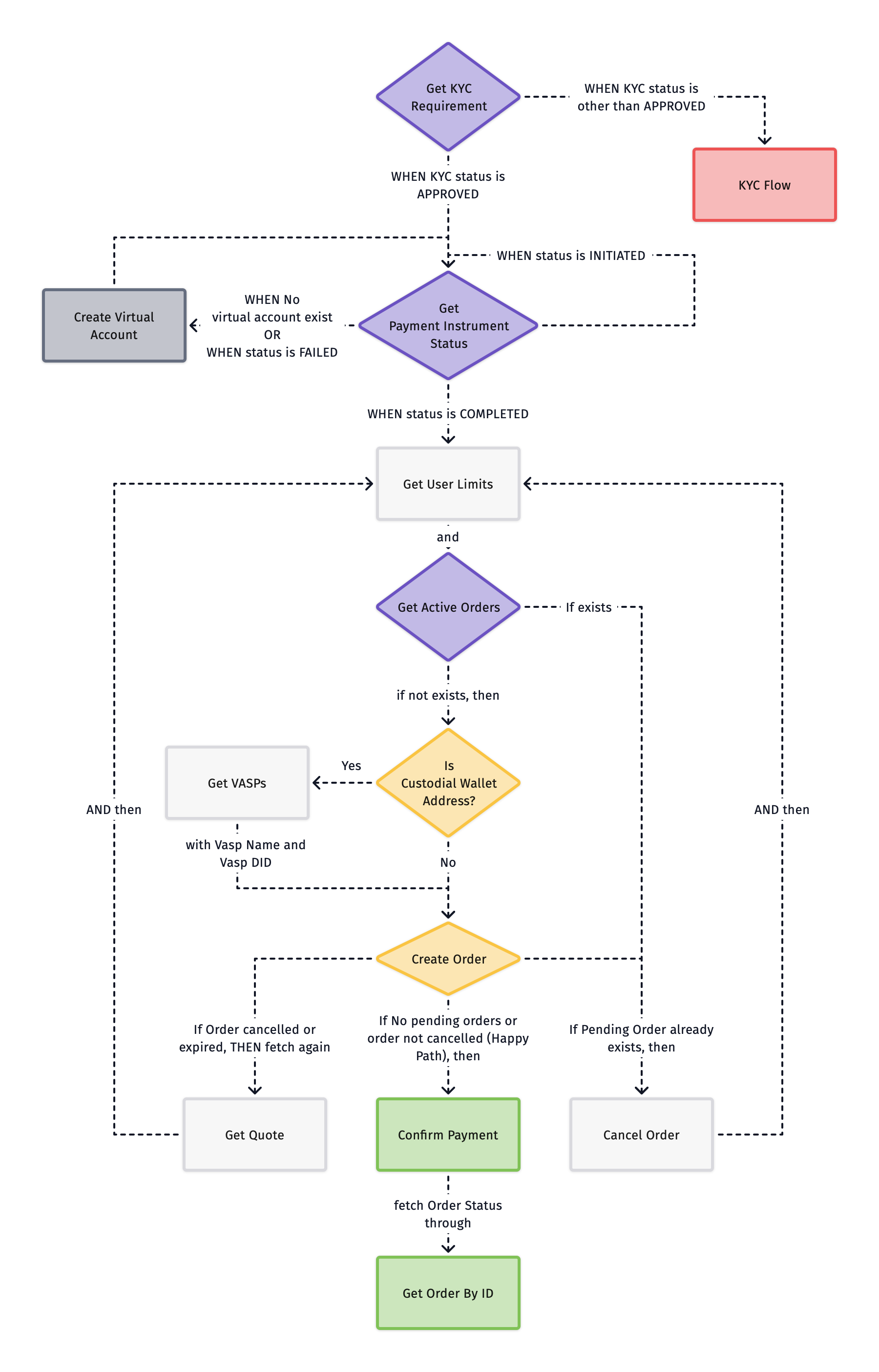
Get KYC Requirement
Call Get KYC Requirement with the quoteId to fetch the user’s KYC status and route accordingly:
Get Payment Instrument Status
Call Get Payment Instrument Status with the quoteId and paymentInstrumentId to check the user’s virtual account status:
Create Virtual Account
Call Create Virtual Account with the quoteId to initiate virtual account creation.
On success (status: INITIATED) → return to Get Virtual Account Status and resume polling for status updates.
Get User Limits
Call Get User Limits with paymentMethod = bank_transfer and fiatCurrency to fetch the user’s monthly, daily, and yearly limits along with available limits to place an order.
On success → proceed to Get Active Orders.
Get Active Orders
Call Get Active Orders to check for any existing pending orders. Transak doesn’t support placing multiple orders simultaneously.
Get VASPs (For Custodial Wallet Address)
Call Get VASPs to get list of supported Virtual Asset Service Providers (VASPs) for custodial wallet address.
search param can be passed to search VASPs based on name.
Create Order
Call the Create Order API to place an order using a Custodial or Non Custodial wallet address.
Mandatory Parameters
Required for Custodial wallet addresses for Travel Rule compliance:
addressAdditionalData
Confirm Payment
Call Confirm Payment with orderId and paymentMethod to confirm the bank transfer.
On success → proceed to Get Order By ID.
Cancel Order
Call Cancel Order with orderId and cancelReason to cancel a pending order.
This is only required when an active order is present. After cancellation, return to Get User Limits to start a fresh order.