
How to add MCP Server for Transak Documentation
Connect your AI coding assistant to Transak documentation using the Model Context Protocol
What is the MCP Server?
The Model Context Protocol (MCP) lets AI-powered coding tools query external knowledge sources directly from your editor. Transak exposes its full documentation as an MCP server. Once connected, your IDE can answer questions about the Transak API, integration options, query parameters, webhooks, and more without you leaving your IDE.
MCP Server Configuration
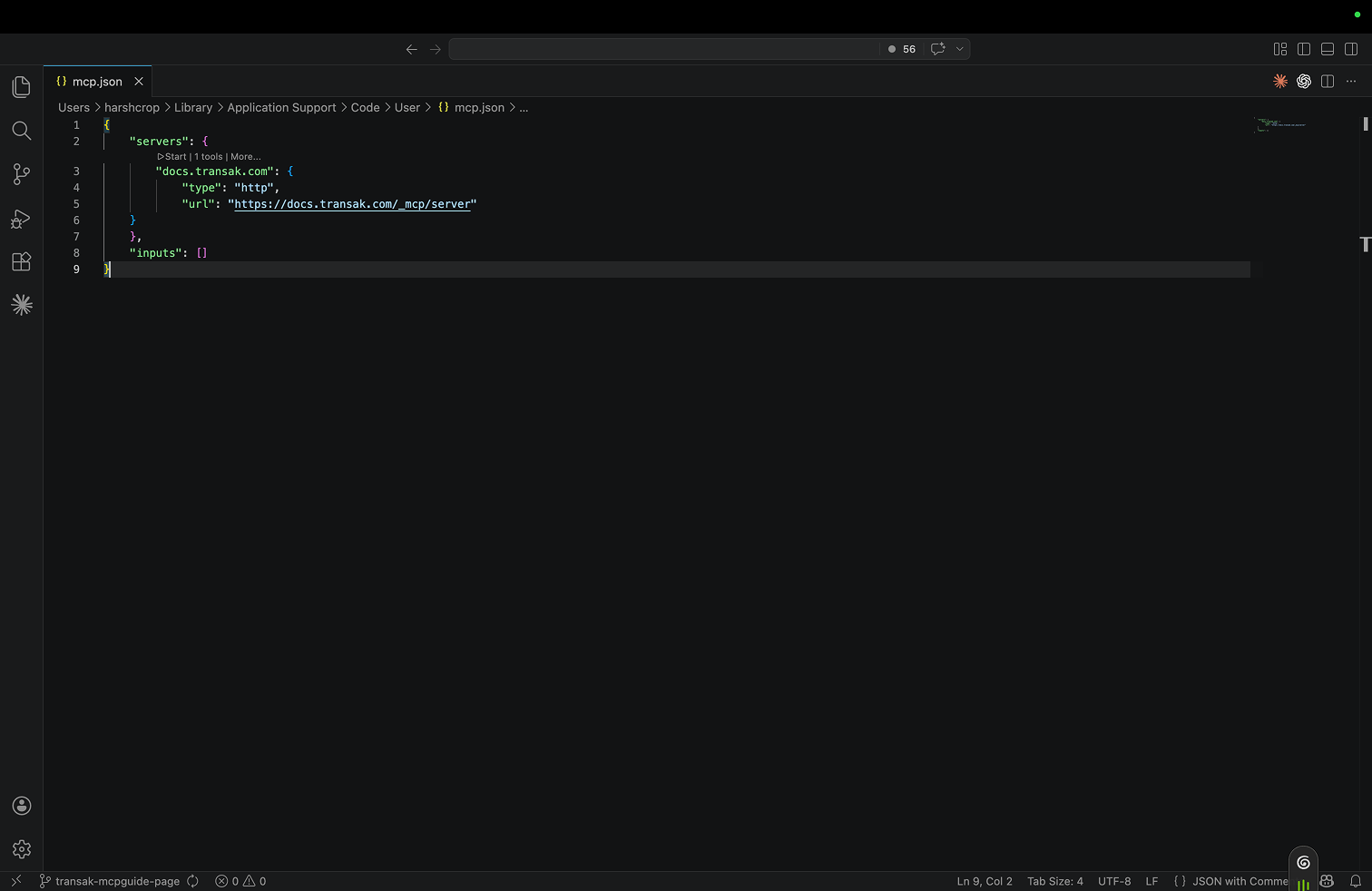
Use the following config to connect any MCP-compatible IDE to the Transak docs server:
MCP Server Config
How to set up the Transak Docs MCP Server in IDEs
VS Code
Cursor
Windsurf
Claude
Codex
Replit
Open MCP configuration
VS Code supports MCP servers via GitHub Copilot (v1.99+). Create or open the workspace MCP config file at .vscode/mcp.json, or add the config to your user settings.json under the "mcp" key.