
Headless Google Pay

Embed Google Pay in your own interface without routing users through the Transak widget.
View as Markdown

Headless Google Pay is a lightweight, embeddable UI module that allows partners to offer Google Pay as a payment method directly within their own application without loading any widget.

Problem Statement

Currently, Transak requires loading the full widget for Google Pay, which forces users to go through multiple screens before reaching payment module. This creates friction and limits the partner control over the payment experience.

Here are some of the key challenges with the current approach:

Full widget required

Partners must load the entire Transak widget to confirm order with Google Pay as payment method.

Multiple screens before payment

Users navigate through several Transak screens before they ever see the Google Pay button, increasing drop-off risk.

Disconnected payment experience

The payment flow feels separate from the partner’s own UI, breaking the continuity.

Limited partner control

Partners have no control over when or where Google Pay appears as placement and styling are determined by the widget.

Our Solution

Headless Google Pay exposes just the Google Pay button as a standalone, embeddable component. Partners control where it sits, how it looks, and what happens after payment. Transak handles all the payment infrastructure in the background.

Here are some of the key benefits of the Headless Google Pay solution:

Just the Google Pay button

Embed only the Google Pay button — no full widget required.

One tap to payment

Users see the Google Pay button immediately and complete payment in a single tap, reducing drop-off.

Seamless checkout integration

The Google Pay button sits inside the partner’s own checkout UI, keeping the experience continuous.

Full partner control

Partners decide where the button appears, how it looks, and what happens after payment.

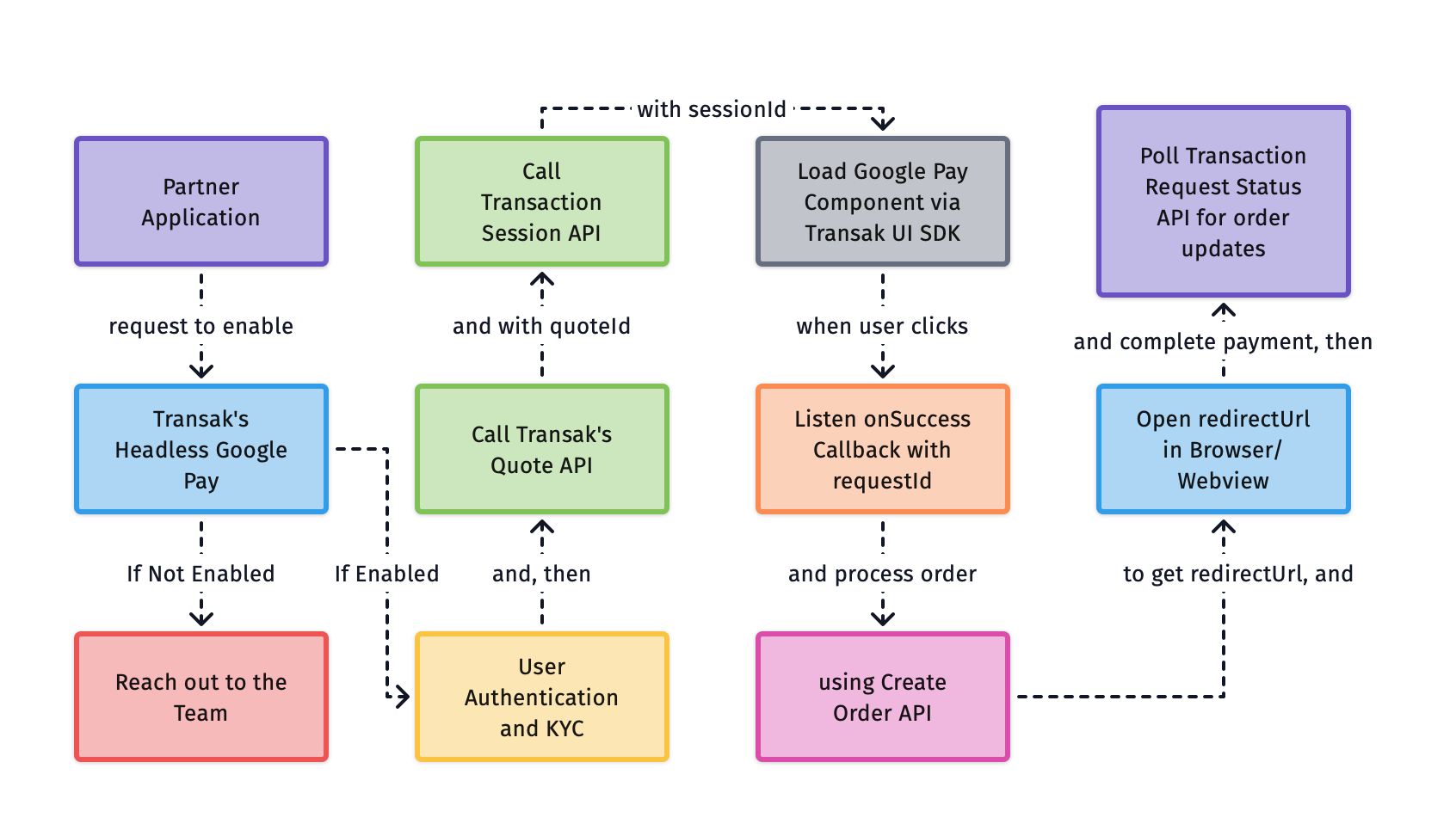
How does it work?

Headless Google Pay

Current Limitations

LimitationDetails
Headless Google Pay APIs (Transaction Session API, Transaction Process API, Transaction Request Status API)

APIs are to be called only from the partner backend and subjected to the whitelisting of partner IP addresses. We don’t support API calls from the frontend due to security restrictions.

Supported for JS, React, and React Native integrations

The Transak UI SDK is available for JS, React, and React Native integrations.

How to integrate?

1

Whitelist Your API Key & Enable Headless Google Pay

Action
Follow the steps in the Need help in Integration section
Request API key whitelisting and ask to enable Headless Google Pay for your API key
Share your public IP addresses with Transak for whitelisting to use our APIs in your backend
2

User Authentication

You can use either of the following authentication options:

OptionDescription
White-label AuthUse the standard Transak authentication flow to generate a user access token. Partners can do this by calling the Send User OTP API followed by the Verify User API to generate the access token.

Learn more
Auth RelianceUse Auth Reliance by passing these headers with every request: x-user-identifier and x-access-token

Please refer to the tutorial on how to create partner access token.

3

User KYC

KYC is a mandatory step in compliance with regulatory requirements. Each user should be KYC Approved. You can use either of the following KYC options:

OptionDescription
White label KYCPartners can collect the required KYC information on their end and then forward it to Transak for review and approval. Learn more: Whitelabel KYC
KYC Reliance via SumsubPartners can share their KYC data from their platform with Transak using Sumsub. Learn more: KYC Reliance Guide
4

Generate a quote using the Quote API

Call the Get Quote API to get a quote for the transaction. Pass the apiKey, fiat amount, fiat currency, crypto currency, network, and order type.

Set paymentMethod to google_pay while creating a quote.

A successful response returns a quoteId.

5

Create a transaction session (using Backend only)

Call the Transaction Session API from your backend using the quoteId, successUrl, failureUrl and the user’s wallet address. You can optionally pass a config and billingAddress object to customise the look and feel of the Google Pay component and billing details.

ParameterDescription
quoteIdQuote ID returned by the Get Quote API in the previous step
walletAddressThe user’s wallet address for the selected cryptocurrency and network
successUrlURL to redirect the user to when the transaction completes successfully
failureUrlURL to redirect the user to when the transaction fails or is cancelled

A successful response returns a sessionId.

6

Load the Google Pay Component via Transak UI SDK

Use the Transak UI SDK to render the Google Pay component. Pass the sessionId received in previous Step.

$npm install @transak/ui-components
1import { createTransakGooglePay } from '@transak/ui-components';
2
3const googlePay = createTransakGooglePay({
4 sessionId, // sessionId from Previous Step
5 environment, // 'STAGING' | 'PRODUCTION'
6 onReady: () => {
7 // Component is ready
8 },
9 onSuccess: ({ requestId }) => {
10 // Payment data captured — use requestId in the next step
11 },
12 onError: ({ code }) => {
13 // Handle error
14 }
15});
16
17await googlePay.mount('checkout-slot');
18
19// and then
20googlePay.unmount();

Error codes

The onError callback receives a code value. Use it to handle specific failure scenarios:

CodeDescription
CONFIG_LOAD_FAILEDGoogle Pay configuration could not be loaded
PAYMENT_CAPTURE_FAILEDGoogle Pay payment capture failed
INVALID_OPTIONSInvalid or missing options passed to the SDK
IFRAME_LOAD_FAILEDThe embedded iframe failed to load
INVALID_STATESDK method called in an unexpected state

Here’s how the Google Pay module appears :

Partner UI: Headless Google Pay
7

Process the payment with requestId (using Backend only)

Once the SDK fires onSuccess with a requestId, call the Transaction Process API from your backend to complete the payment and create the order.

A successful response returns the full order details with redirectUrl.

8

Open the redirectUrl in a browser or WebView

Open the redirectUrl returned in the previous step in the browser or webview to complete any 3DS or bank authentication required by the payment provider.

Upon completing the transaction, the user will be redirected to either the successUrl or failureUrl you passed in the Transaction Session API.

OutcomeRedirect destination
Payment successfulsuccessUrl passed in Transaction Session API
Payment failedfailureUrl passed in Transaction Session API
9

Track the requestId (using Backend only)

Call the Transaction Request Status API to check whether the request has been processed. Poll this endpoint until the status reaches a terminal state.

Once you receive an orderId, use the Get Order by ID API to fetch full order details.

API Overview

API Errors

HTTP StatusError CodeMessage
4006099successUrl and failureUrl are required for credit/debit card payments.
4011002Invalid or missing authentication token.
4226002KYC is not approved. Please complete KYC before creating a session.
4226003This feature is not enabled for your account. Please contact support.
4226005Quote not found or could not be loaded.
4226005This payment method is not currently supported. Please try a different payment method.
4226006The provided wallet address is invalid for the selected cryptocurrency and network.
4002030Your account has been disabled. Please get in touch with us at fraud@transak.com.
5006005Failed to create a session for the user.
HTTP StatusError CodeMessage
4046007Request ID not found.
4094005Order exists.
4224001Invalid wallet address. Please provide a valid wallet address to proceed.
4224003Please upgrade your kyc to next level to proceed with this transaction.
4224013Minimum amount should be more than {amount}.
4224015Invalid payment method for currency combination.
4224016FCA criteria not met, Please complete the assessments.
4226012KYC requirement is not approved for this transaction.
4226014Unable to process request. User location data is required for this transaction.
4002030Your account has been disabled. Please get in touch with us at fraud@transak.com.
5004006Unable to create order.
5004021Something went wrong, try again later!
5006099Unable to process the order. Please try again.
HTTP StatusError CodeMessage
4046007Request ID not found.
4094005Order exists.
4224001Invalid wallet address. Please provide a valid wallet address to proceed.
4224003Please upgrade your kyc to next level to proceed with this transaction.
4224013Minimum amount should be more than {amount}.
4224015Invalid payment method for currency combination.
4224016FCA criteria not met, Please complete the assessments.
4226011KYC requirement is not approved for this transaction.
4226014Unable to process request. User location data is required for this transaction.
5004006Unable to create order.
5004021Something went wrong, try again later!
5006099Unable to process the order. Please try again.