Headless ACH Pull

Embed US bank-account linking and ACH debit payments in your own interface without routing users through the Transak widget.

View as Markdown

Headless ACH Pull (also known as Instant Bank Transfer) is a lightweight, embeddable module that lets US users link a bank account and pay via ACH debit directly within your own application, without loading the Transak widget.

Problem Statement

Currently, Transak requires loading the full widget for ACH Pull payments, which forces users to go through multiple screens before they can link a bank account and pay. This creates friction and limits partner control over the payment experience.

Here are some of the key challenges with the current approach:

Full widget required

Partners must load the entire Transak widget to accept ACH Pull payments.

Multiple screens before payment

Users navigate through several Transak screens before they ever reach bank linking, increasing drop-off risk.

Disconnected payment experience

The bank-linking and payment flow feels separate from the partner’s own UI, breaking the continuity.

Limited partner control

Partners have no control over when or where the bank-linking flow appears — placement and styling are determined by the widget.

Our Solution

Headless ACH Pull exposes bank-account linking and payment as a standalone, embeddable flow. Partners control where it sits, how it looks, and what happens after payment. Transak handles the bank linking and ACH debit infrastructure in the background.

Here are some of the key benefits of the Headless ACH Pull solution:

Just the bank-linking flow

Embed only the mobile verification and bank-linking flow.

Fewer steps to payment

Returning users with a connected bank account can check out without opening a widget.

Seamless checkout integration

The bank-linking flow sits inside the partner’s own checkout UI, keeping the experience continuous.

Full partner control

Partners decide where the flow appears, how it looks, and what happens after payment.

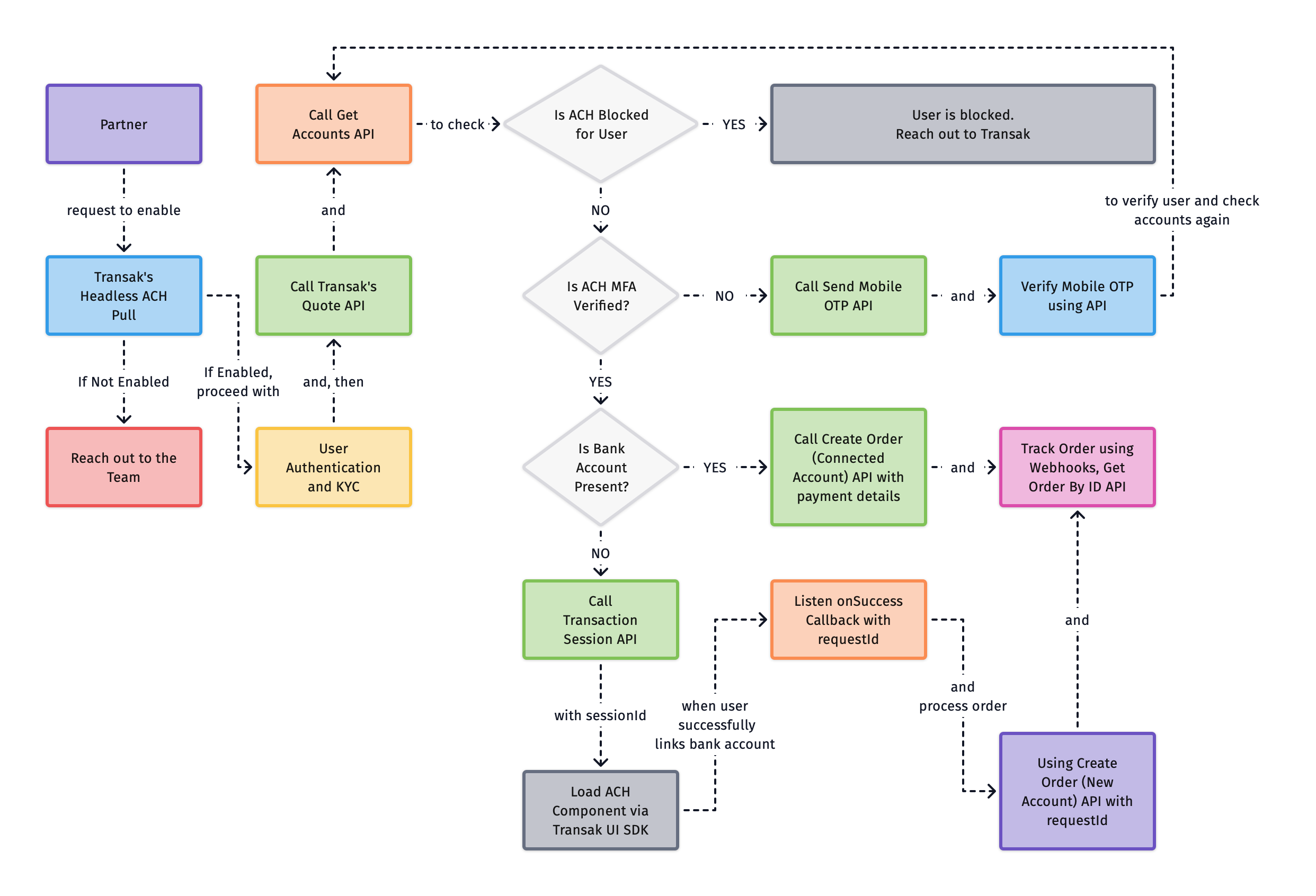
How does it work?

headless-ach-pull

Current Limitations

LimitationDetails
US users only

ACH Pull is only supported for US region users transacting in USD, and requires a US phone number for bank-account linking.

Headless ACH Pull APIs

APIs are to be called only from the partner backend and subjected to the whitelisting of partner IP addresses. We don’t support API calls from the frontend due to security restrictions.

Supported for JS, React, and React Native integrations

The Transak UI SDK is available for JS, React, and React Native integrations.

OTP attempt limit

5 invalid OTP attempts will block the user’s account. The user will need to reach out to Transak for unblocking.

How to integrate?

1

Whitelist Your API Key & Enable Headless ACH Pull

Action
Follow the steps in the Need help in Integration section
Request API key whitelisting and ask to enable Headless ACH Pull for your API key
Share your public IP addresses with Transak for whitelisting to use our APIs in your backend
2

User Authentication

You can use either of the following authentication options:

OptionDescription
White-label AuthUse the standard Transak authentication flow to generate a user access token. Partners can do this by calling the Send User OTP API followed by the Verify User API to generate the access token.

Learn more
Auth RelianceUse Auth Reliance by passing these headers with every request: x-user-identifier and x-access-token

Please refer to the tutorial on how to create partner access token.

3

User KYC

KYC is a mandatory step in compliance with regulatory requirements. Each user should be KYC Approved. You can use either of the following KYC options:

OptionDescription
White label KYCPartners can collect the required KYC information on their end and then forward it to Transak for review and approval. Learn more: Whitelabel KYC
KYC Reliance via SumsubPartners can share their KYC data from their platform with Transak using Sumsub. Learn more: KYC Reliance Guide
4

Generate a quote using the Quote API

Call the Get Quote API to get a quote for the transaction. Pass the apiKey, fiat amount, fiat currency, crypto currency, network, and order type.

Set paymentMethod to pm_ach_pull while creating a quote. ACH Pull only supports USD as the fiat currency.

A successful response returns a quoteId.

5

Check for connected bank accounts (using Backend only)

Call the Get Accounts API with paymentInstrumentId set to pm_ach_pull to check whether the user already has a connected bank account.

A successful response returns bankAccounts, isAchMFAVerified, and isAchBlocked.

CaseNext step
isAchBlocked = trueThe user is blocked from using ACH Pull. Reach out to Transak
isAchMFAVerified = falseCall the Send Mobile OTP API and Verify Mobile OTP API to verify the user’s mobile number, then call the Get Accounts API again for the updated status
No connected bank account, isAchBlocked = false, and isAchMFAVerified = trueCreate a transaction session to link a new bank account
Connected bank account found, isAchBlocked = false, and isAchMFAVerified = trueGo to Place order using the connected account
6

Place order using the connected account (using Backend only)

If the user has a connected bank account, call the Create Order (Connected Account) API from your backend using below parameters.

ParameterDescription
quoteIdQuote ID returned by the Get Quote API
paymentInstrumentIdAlways pm_ach_pull
walletAddressThe user’s wallet address for the selected cryptocurrency and network
paymentIdentifierIdThe connected bank account’s identifier returned by the Get Accounts API

A successful response returns the full order details, including orderId and status. Continue with the Track the order step below.

7

Send Mobile OTP (using Backend only)

If the user has no connected bank account, call the Send Mobile OTP API from your backend with the user’s US mobileNumber.

A successful response returns a mfaSessionId.

8

Verify Mobile OTP (using Backend only)

Call the Verify Mobile OTP API from your backend with the mfaSessionId from the previous step and the code the user received on their mobile number.

9

Create a transaction session (using Backend only)

Call the Transaction Session API from your backend using the quoteId and the user’s wallet address. You can optionally pass a config object to customise the color mode of the bank-linking component.

ParameterDescription
quoteIdQuote ID returned by the Get Quote API in an earlier step
walletAddressThe user’s wallet address for the selected cryptocurrency and network
configOptional. colorMode (DARK or LIGHT) to theme the bank-linking component

A successful response returns a sessionId.

10

Load the ACH Pull Component via Transak UI SDK

Use the Transak UI SDK to render the bank-linking component. Pass the sessionId received in the previous step.

The video below shows the ACH Pull bank-linking flow. This entire flow runs through the Embeddable Transak UI.


$npm install @transak/ui-components
1import { createTransakAchPull } from '@transak/ui-components';
2
3const achPull = createTransakAchPull({
4 sessionId, // sessionId from previous step
5 environment, // 'STAGING' | 'PRODUCTION'
6 onReady: () => {
7 // Component is ready
8 },
9 onSuccess: ({ requestId }) => {
10 // Bank linked — use requestId in the next step
11 },
12 onError: ({ code }) => {
13 // Handle error
14 },
15 onClose: () => {
16 // Customer dismissed the bank-linking widget
17 },
18});
19
20await achPull.mount('ach-pull-slot');
21
22// and then
23achPull.unmount();

Error codes

The onError callback receives a code value. Use it to handle specific failure scenarios:

CodeDescription
CONFIG_LOAD_FAILEDACH Pull configuration could not be loaded
BANK_LINKING_FAILEDBank-account linking failed
INVALID_OPTIONSInvalid or missing options passed to the SDK
IFRAME_LOAD_FAILEDThe embedded iframe failed to load
INVALID_STATESDK method called in an unexpected state
OAUTH_LAUNCH_FAILEDReact Native only. Failed to launch the OAuth bank-linking flow
11

Place order using the new account (using Backend only)

Once the SDK fires onSuccess with a requestId, call the Create Order (New Account) API from your backend using the requestId to complete the payment and create the order.

A successful response returns the full order details, including orderId and status.

12

Track the order (using Backend only)

The Create Order response already contains the orderId and status. Use the Get Order by ID API to poll for full order details until the status reaches a terminal state.

API Overview

API Errors

HTTP StatusError CodeMessage
4009001Validation failed — missing/unsupported paymentInstrumentId, or missing/invalid quoteId for a bank-transfer rail
4011002Invalid or missing authentication token.
4032030Your account has been disabled. Please get in touch with us at fraud@transak.com
4036019Unable to fetch ACH user state (no Aeropay user yet / provider error)
HTTP StatusError CodeMessage
4009001mobileNumber must be a valid E.164 phone number (e.g. +12223339999)
4036017Cannot create user
HTTP StatusError CodeMessage
4006018Cannot verify otp
HTTP StatusError CodeMessage
4011002Invalid or missing authentication token.
4226002KYC is not approved. Please complete KYC before creating a session.
4226003This feature is not enabled for your account. Please contact support.
4226005Quote not found or could not be loaded.
4226005This payment method is not currently supported. Please try a different payment method.
4226006The provided wallet address is invalid for the selected cryptocurrency and network.
4226015User is blocked from using ACH. Please contact support.
4226016Unable to verify user for ACH payment.
4226021User verification is required for ACH. Please complete verification before continuing.
5006005Failed to create a session for the user.
HTTP StatusError CodeMessage
4094005Order exists
4224001Invalid wallet address. Please provide a valid wallet address to proceed.
4224013Minimum amount should be more than {amount}.
4224015Invalid payment method for currency combination
4224016FCA criteria not met, Please complete the assessments.
4226011KYC requirement is not approved for this transaction.
5004006Unable to create order
5004021Something went wrong, try again later!
5006099Unable to process the order. Please try again.